

Tasks Tab
Overview
The Tasks tab allows you to view a more granular list of your submitted tasks, filterable by status, project, and batch.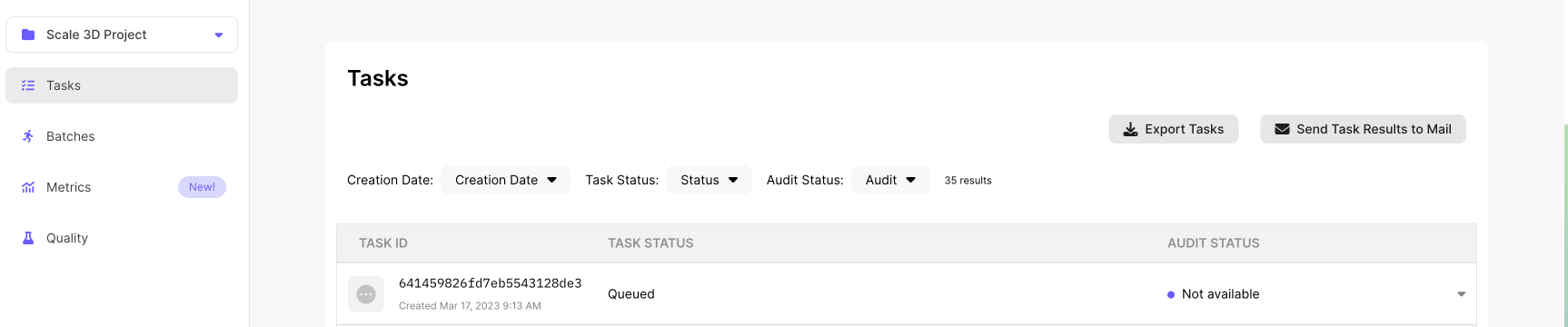
Task Filters
You can search through your tasks using the following filters: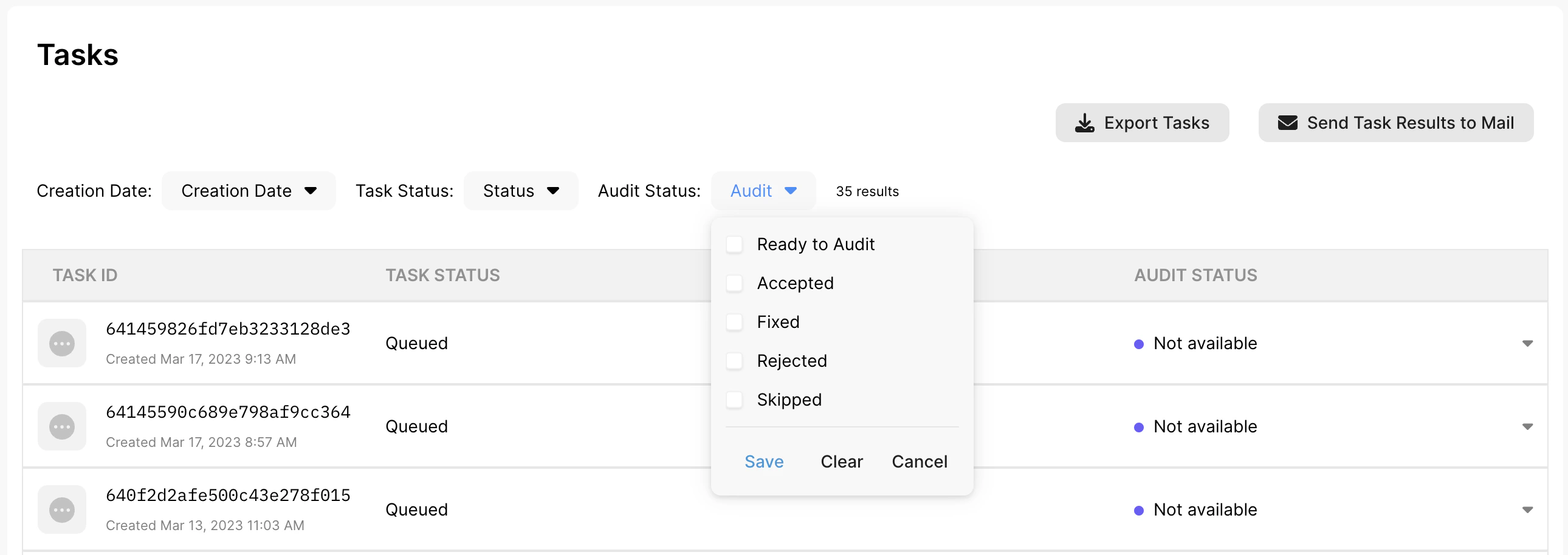
- Note: You are able to select UTC Time, Pacific Time, or Local Time
-
You can also filter based on the task status. Here are the following status options:
- **Completed - **Tasks that have been completed by our taskers
- **In Progress - **Tasks that are being worked on by our taskers
- **Queued - **Tasks that have not been worked on yet
- **Error - **Tasks that have errors.
- **Canceled - **Tasks that have been cancelled by our customers
- **Redo - **Tasks that have been re-done by Scale
-
Filter based on the customer audit status:
- **Read to Audit **(Tasks that have not been audited yet)
- Accepted
- Fixed
- Rejected
Exporting JSON
There are two ways for exporting JSON1. Export JSON for all Tasks

- Click on the Export button at the top of the Tasks page
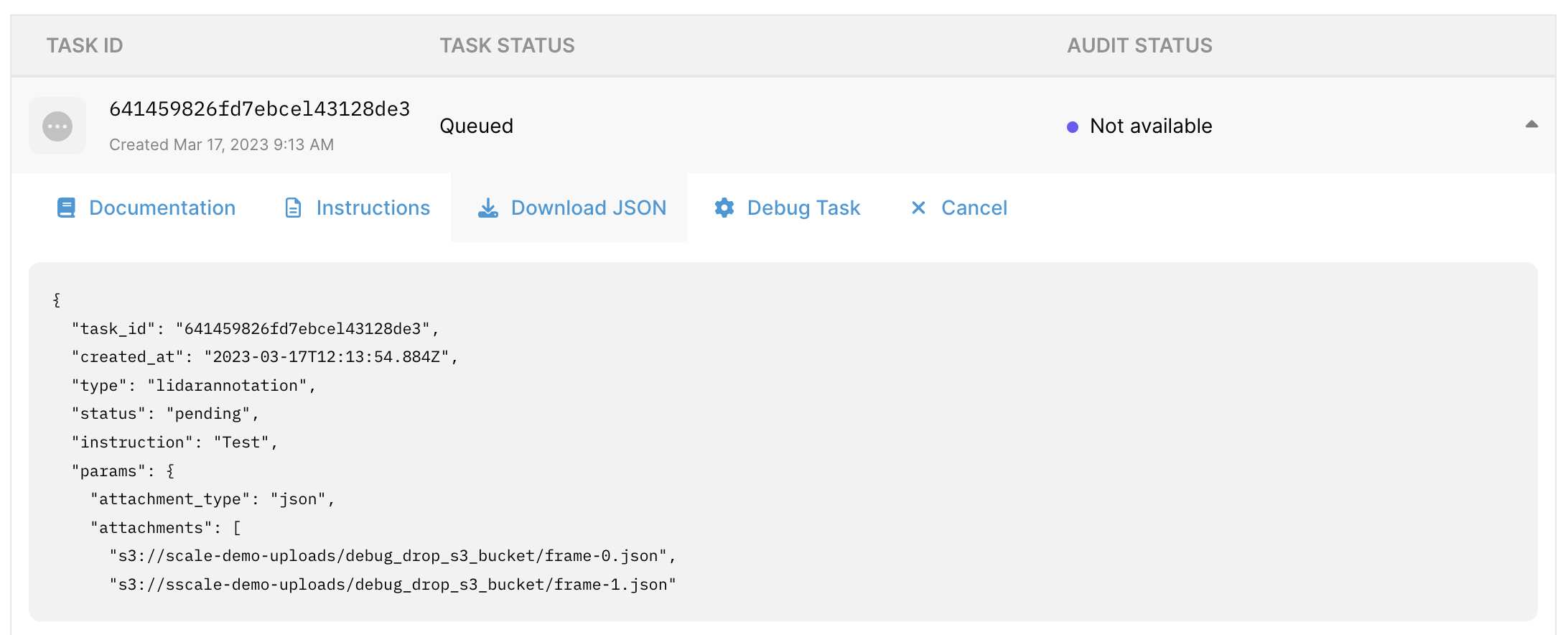
- Click on each task and then click on the Download JSON button. You can also see a preview of the JSON directly from this view.
Task Details
1. Task Preview- To preview the media asset file, please click into task and hover over the image tile. Please note that you can only preview the original image for pending tasks and annotated images for completed tasks.
- For 3D tasks, you can preview the point cloud file by clicking on “Debug Task” or “Audit Task” (this is for completed tasks only)
- To view the documentation and instructions for the task, please click into the task and navigate to the “Instructions” or “documentation“ button
- To view the JSON file for each task individually, please click into the task and navigate to the “Download JSON” button. Please note that this will only return the JSON file for the original task upload
- You can also export all JSON for all tasks using the “Export JSON” button
Audit Tasks
To audit tasks, click on an individual task, and then click the “Audit tasks” button. In this view you can:- Accept - This will signal that we have completed the task to your quality standards
-
Fix - If you want to make an immediately update to your callback response, you can fix tasks directly
- previous responses will be saved in the
prior_reponsefield of the callback body and theresponsefield will be updated with the updated response.
- previous responses will be saved in the
- Reject - This will signal that we have not met your quality standards.