Overview
The Taxonomy Service is an intuitive, self-service tool designed to help teams efficiently create, update, and manage taxonomies. With its streamlined version management feature, users can easily track changes and ensure consistency across multiple versions of taxonomy-related tasks. By providing a unique identifier for each taxonomy, this tool guarantees that your data is always properly labeled and organized. Whether you’re managing simple annotations or complex tasks like Lidar segmentation, the Taxonomy Service simplifies the process, so you can focus more on accuracy and less on manual management. It ensures that every step in your workflow, from data labeling to final version tracking, is handled seamlessly, reducing errors and maintaining high standards across your operations.Supported Task Types
Currently, Taxonomy Service supports the following task types:- Segment Annotation
- LidarAnnotation
- Lidar TopDown
- LidarLinking
- LidarSegmentation
- VideoAnnotation
- ImageAnnotation
- Sensor Fusion
Taxonomy SRN
A Taxonomy SRN (Service Resource Name) is a unique identifier for a specific taxonomy version. It allows you to compare and track different versions of taxonomies across tasks, ensuring consistency and accuracy for your labeling requirements. Format srn:scale:avcv:taxonomy:taxonomy:\<projectId\>/\<name\>/\<version\>/\<hash\>
Example
srn:scale:avcv:taxonomy:taxonomy:654dd0785yytd22829f342hs/user_myproject_lidar_test/v1/0ac7578c6b32107816e071aa11353bab61bb6h1f
Task Creation Process
When Taxonomy Service is enabled on your project, tasks that are created will automatically be updated with the latest taxonomy that was published using Taxonomy Service. Therefore, you can remove taxonomy JSON during the task creation process. Note that if you keep the taxonomy JSON in the task creation API call, the** taxonomy JSON will override** any taxonomy published using Taxonomy Service.Dependent Tasks
Each dependent project must have its own taxonomy defined in Taxonomy Service. For example, if you have a LidarAnnotation project and dependent LidarLinking and Lidartopdown projects, each must have its taxonomy defined separately in our Taxonomy Service, Teddy.Dependent projects
Taxonomy Service supports dependent projects, managing their taxonomies automatically. Ensure each project is set up with its own taxonomy, and remove any taxonomy-related parameters from the scripts and task parameters.Tracking
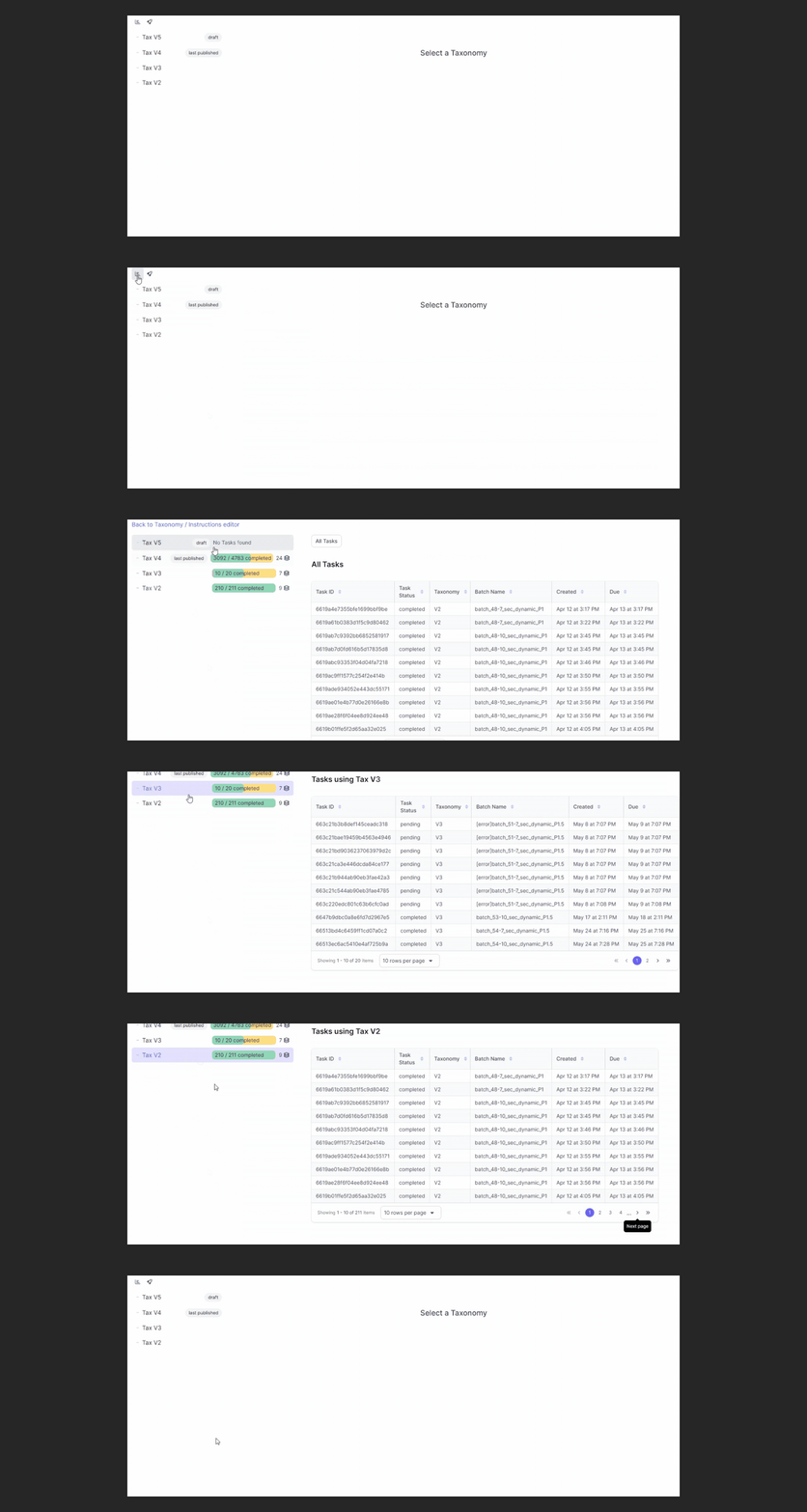
Use the Taxonomy Metrics tool to review and monitor where the Taxonomies and policies were applied.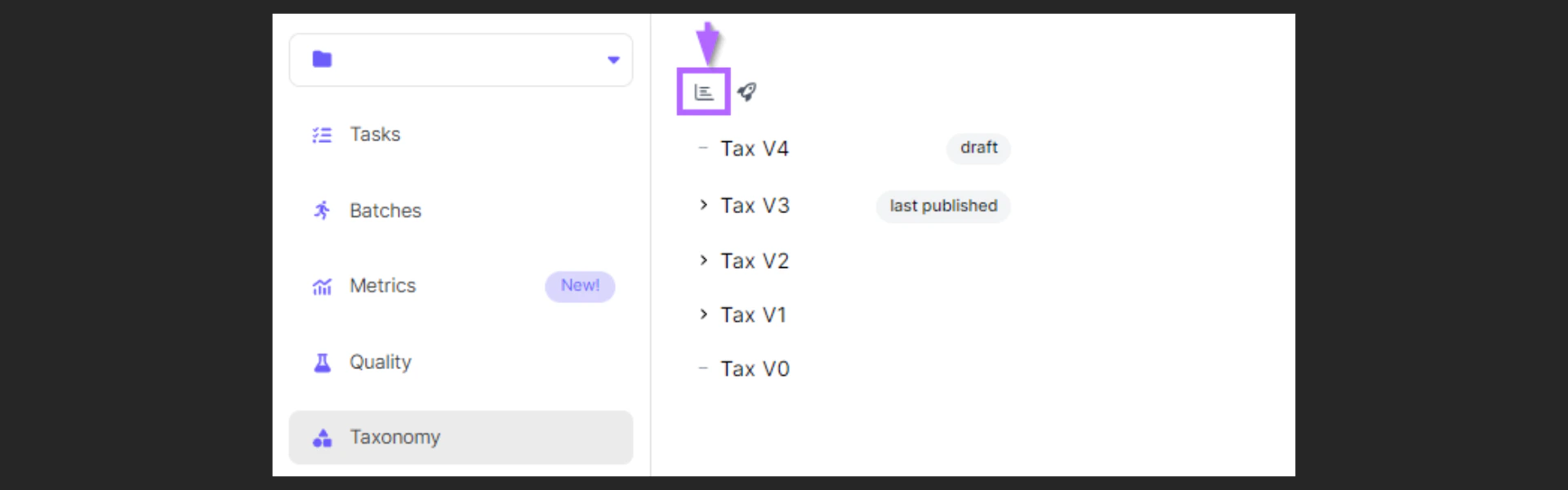
Getting Started
Access
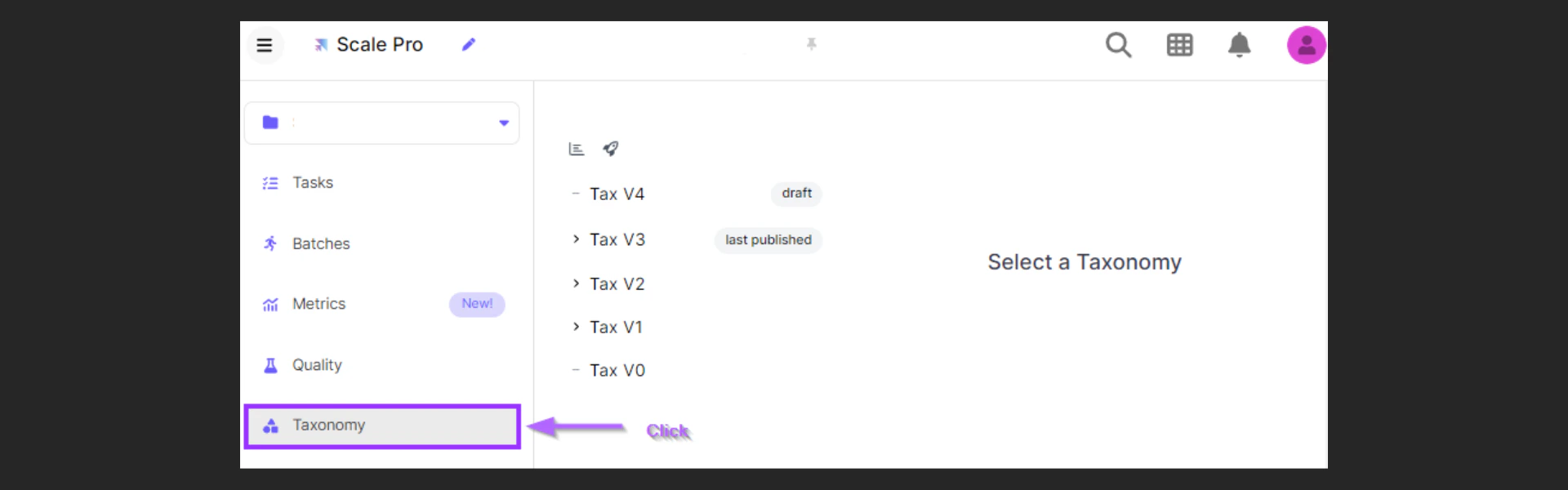
You can access the Taxonomy Service from the Scale dashboard page on the left panel for each project that is enabled.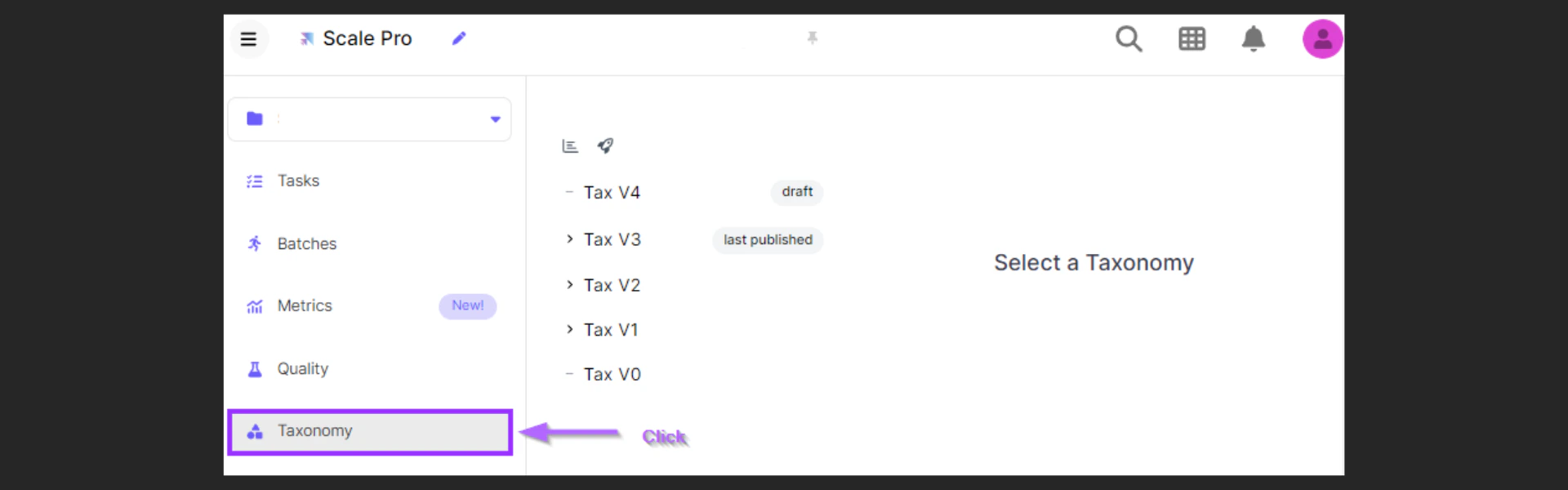
Set Up
Create and publish a taxonomy using the Taxonomy Editor. See the “Adding annotations” section below for details. Ask your account manager to enable the “Pull last published Taxonomy when creating Tasks” property in the project configurations to allow auto-pulling of the latest taxonomy.Adding annotations
- Access the Taxonomy Editor from the project dashboard page.
- Once on Taxonomy Service, you will see a list of all taxonomy versions in the left sidebar. Only the current draft is editable; previously published versions are locked.
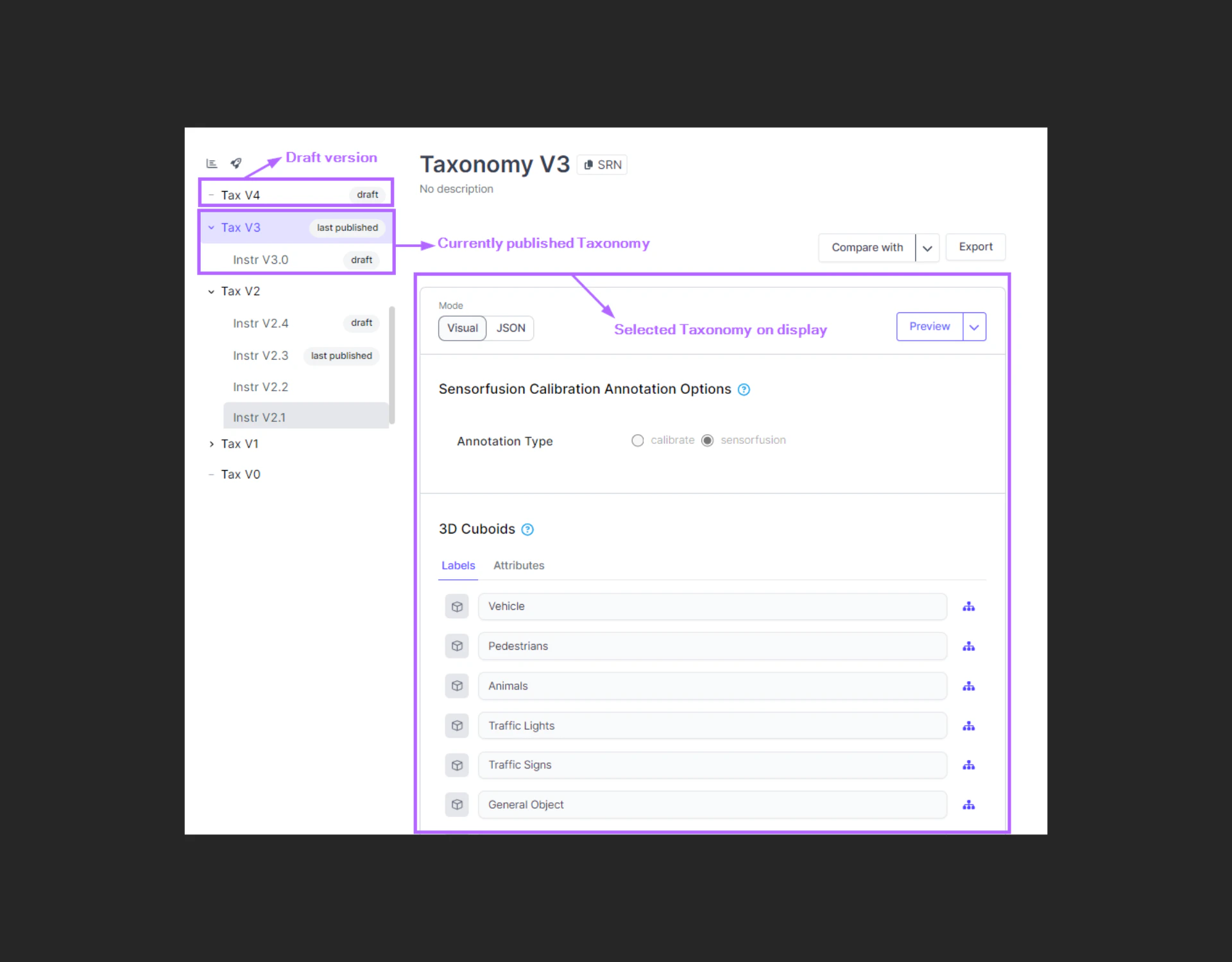
- To make changes, first select the taxonomy version that is in draft by clicking the taxonomy with a Draft status:

- Once you have selected your draft, its details appear on the right side of the screen, with the edit controls at the top and the taxonomy details below.
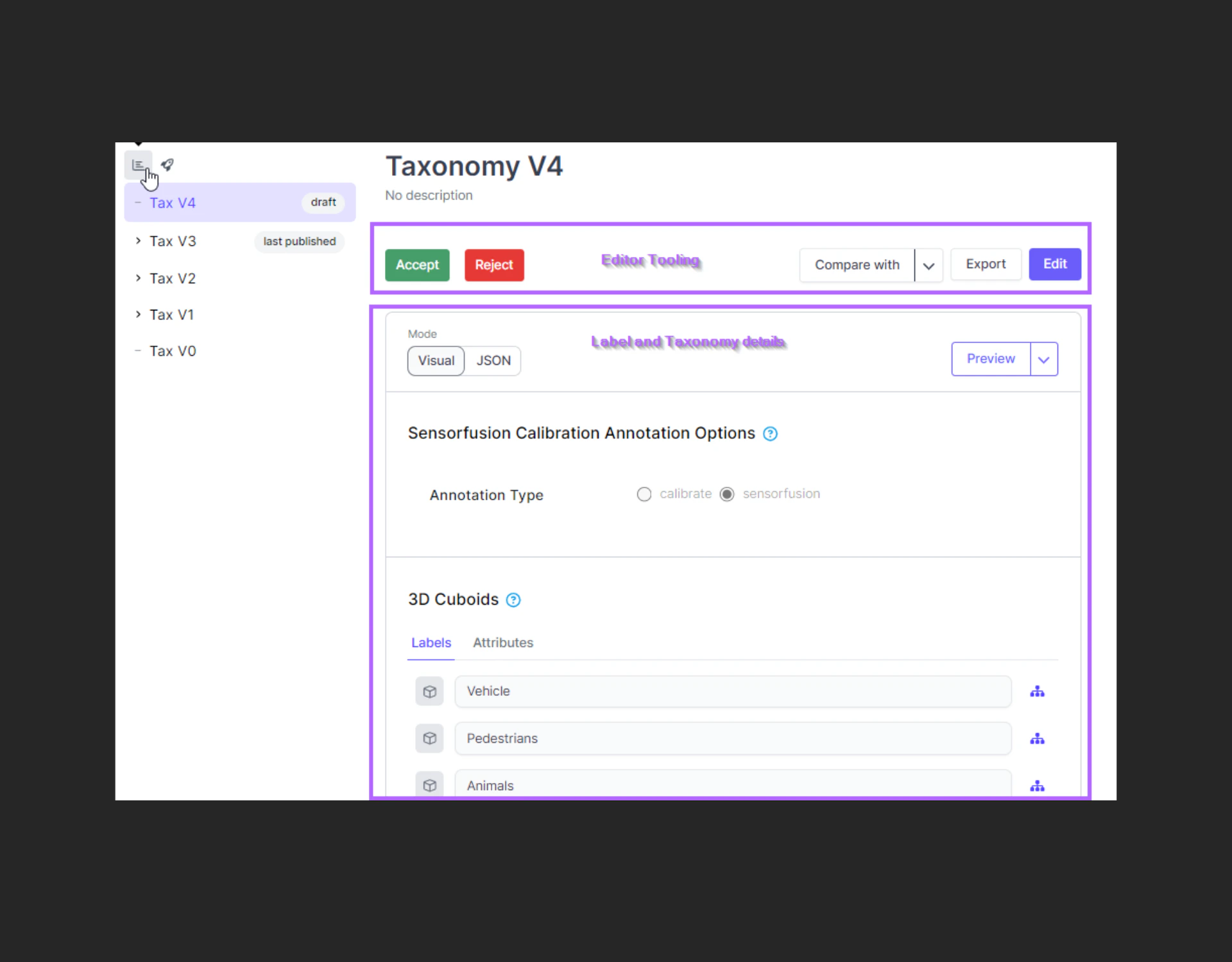
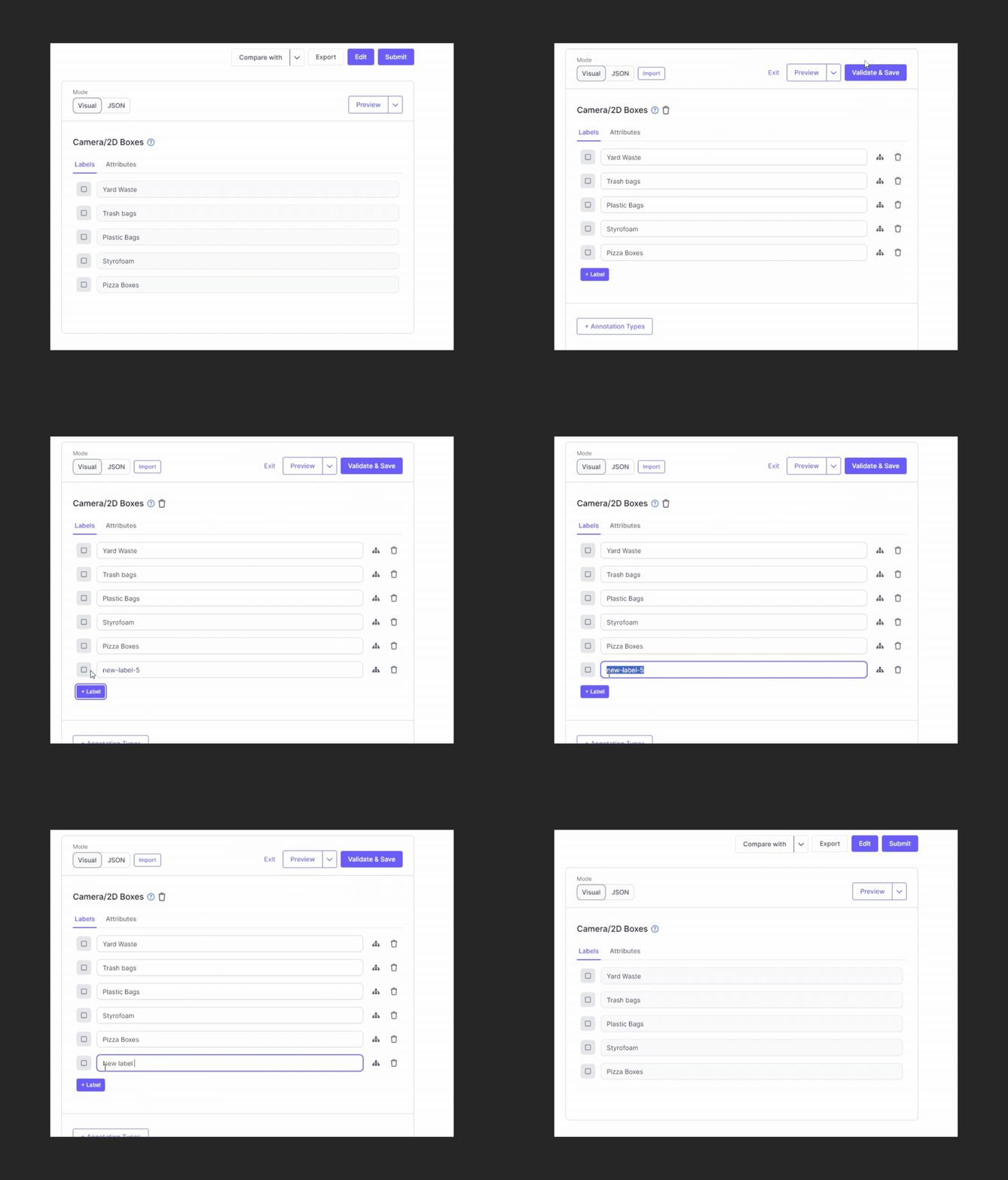
- By default, this view is read-only. To edit the taxonomy, click the “Edit” button in the editor toolbar.
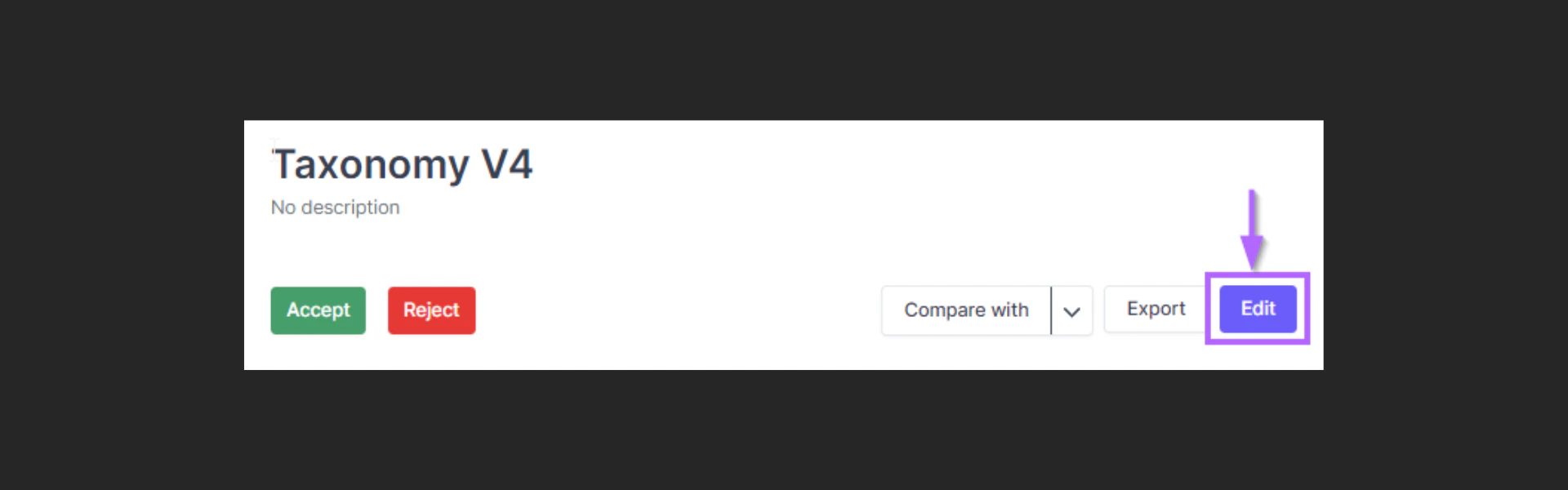
- Now we are on the editor view! Let’s add a new label:
- First, click the + Label button. This adds a new base label that we can modify.
- A new label named new-label-# appears under the existing list.

- To rename the label, click it and type the new name. You can rename any other label the same way.
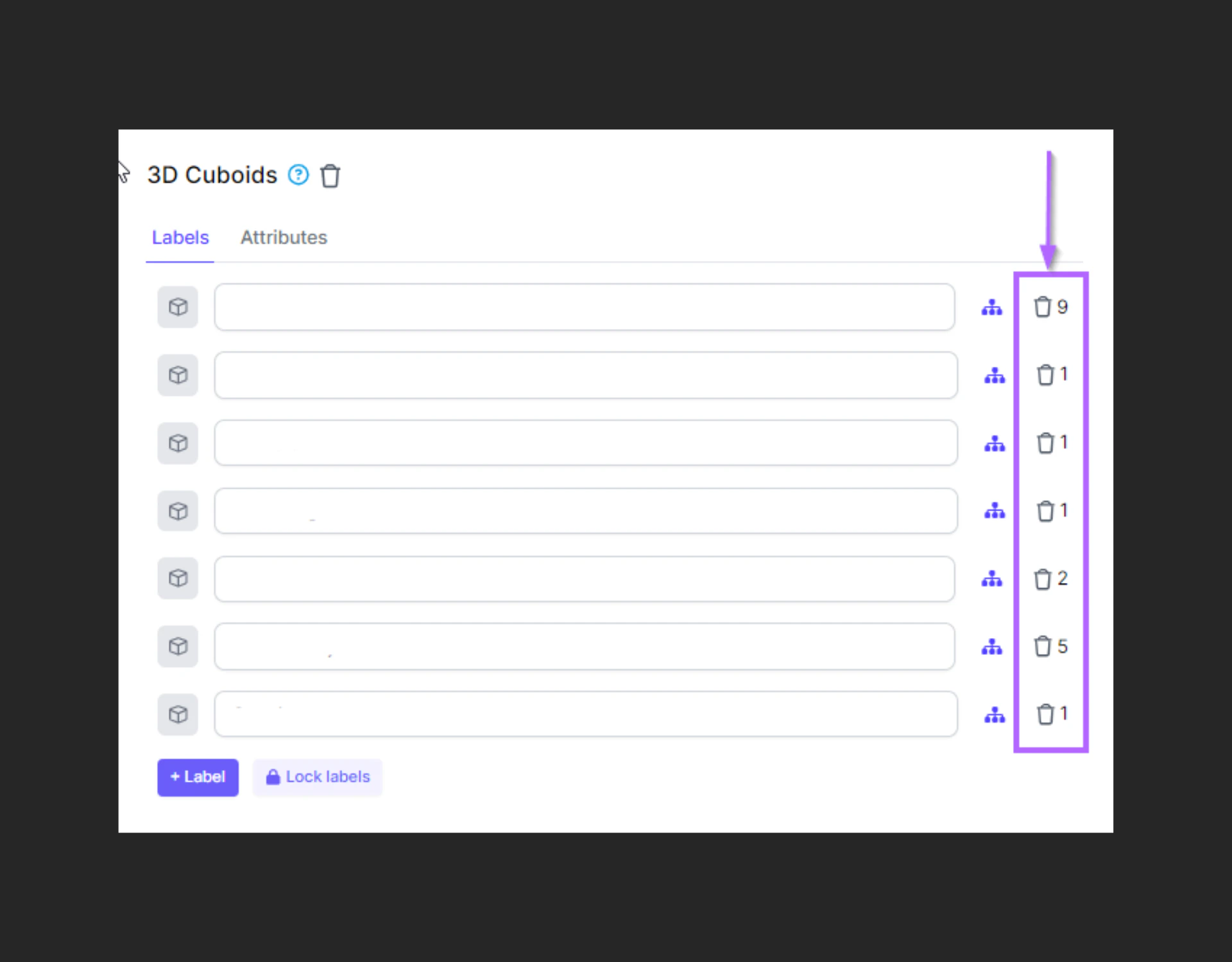
- To delete a label just click on the Trash bin button on the right side of any label previously added.
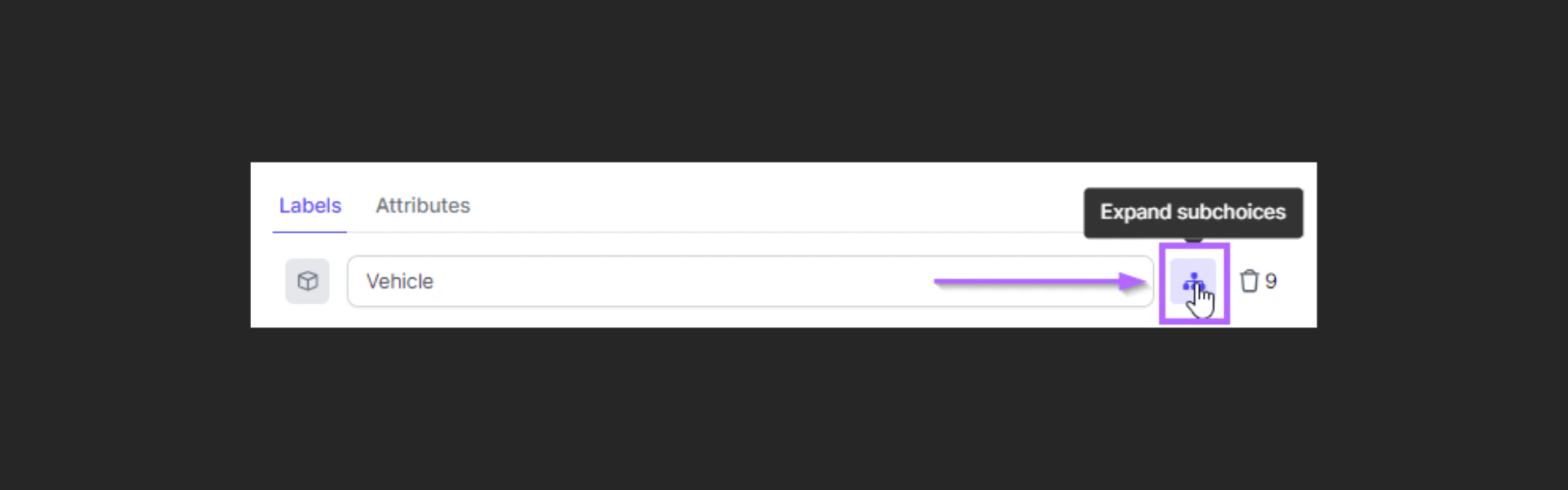
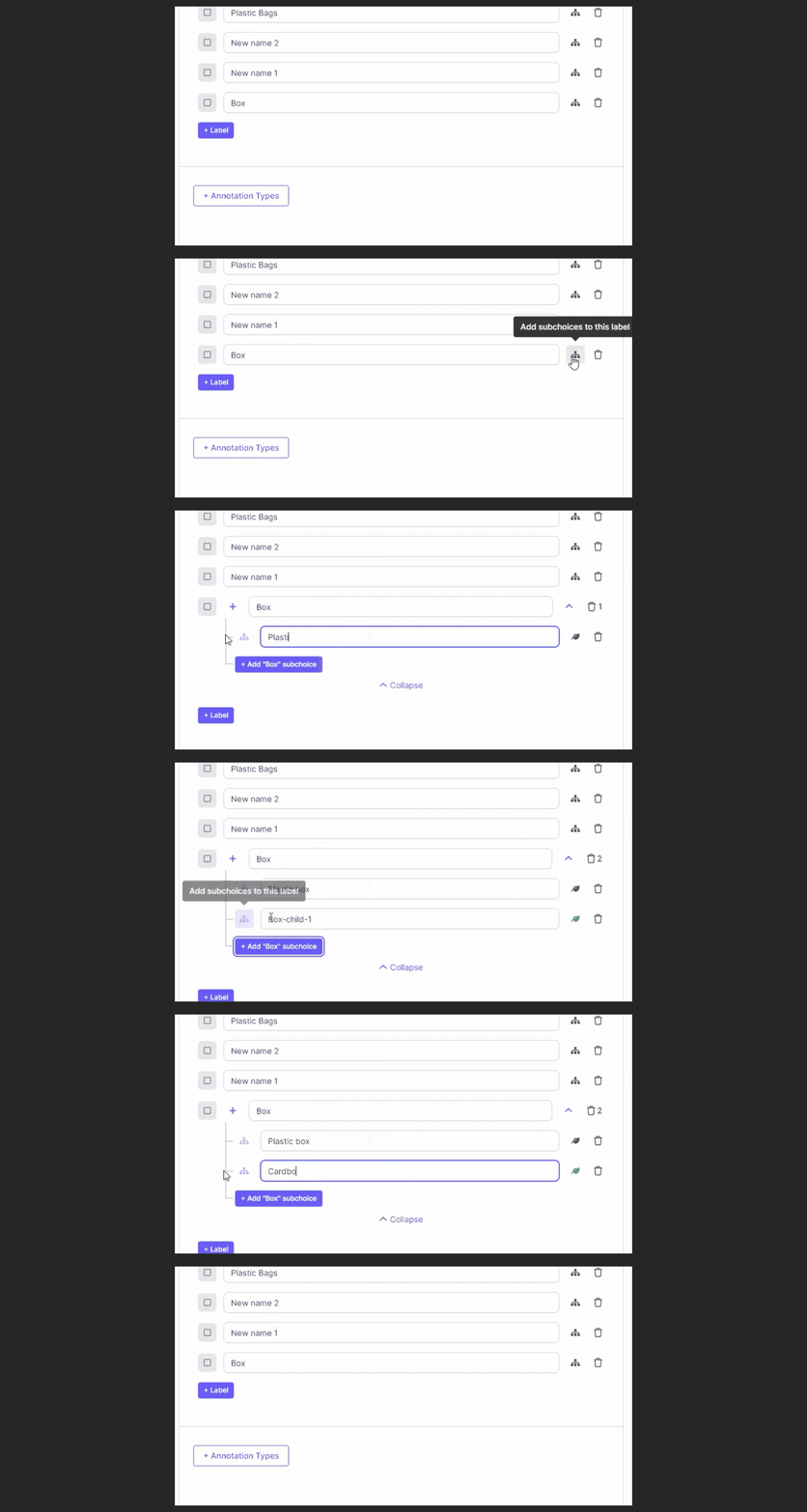
- To add leaf labels, click the add child button on the right side of the label:
- After adding a leaf label, you can rename it as needed. Note that you can also add multiple leaf labels as shown next:
- Now that you have added a label, the next section covers adding attributes.
Adding Attributes
Adding attributes is similar to adding labels. The following steps show how to add an attribute and the main settings to configure:- First, open the Attribute view by clicking the Attributes tab above the taxonomy view:
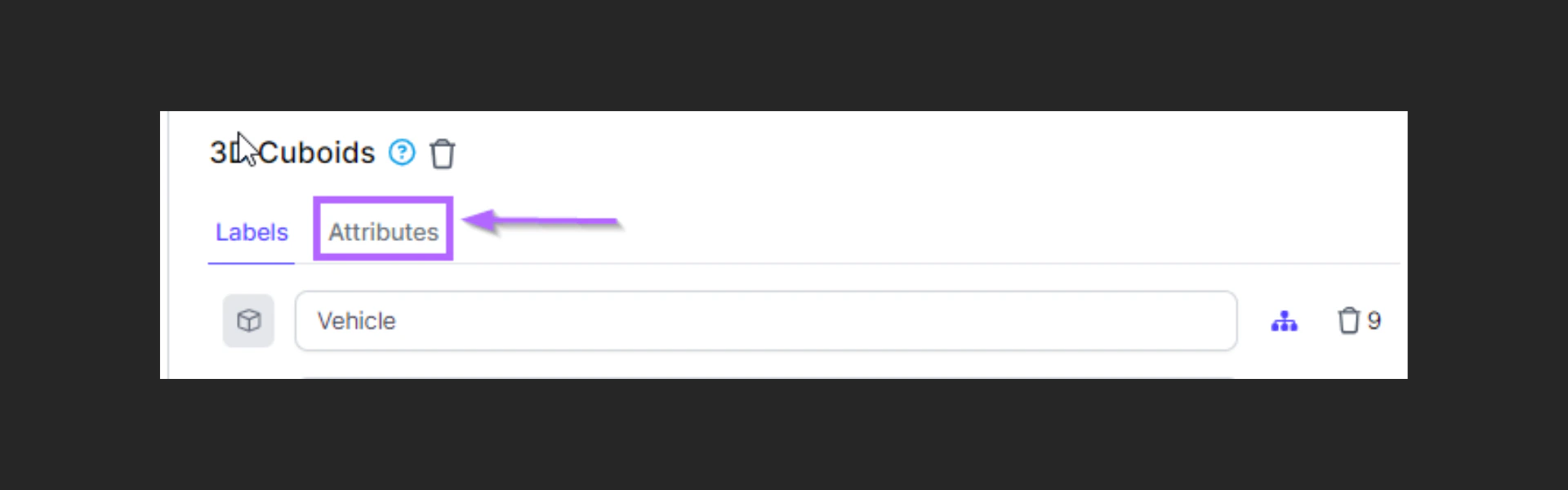
- The Attribute view lists any previously added attributes. To add a new attribute, click the + Attribute button.
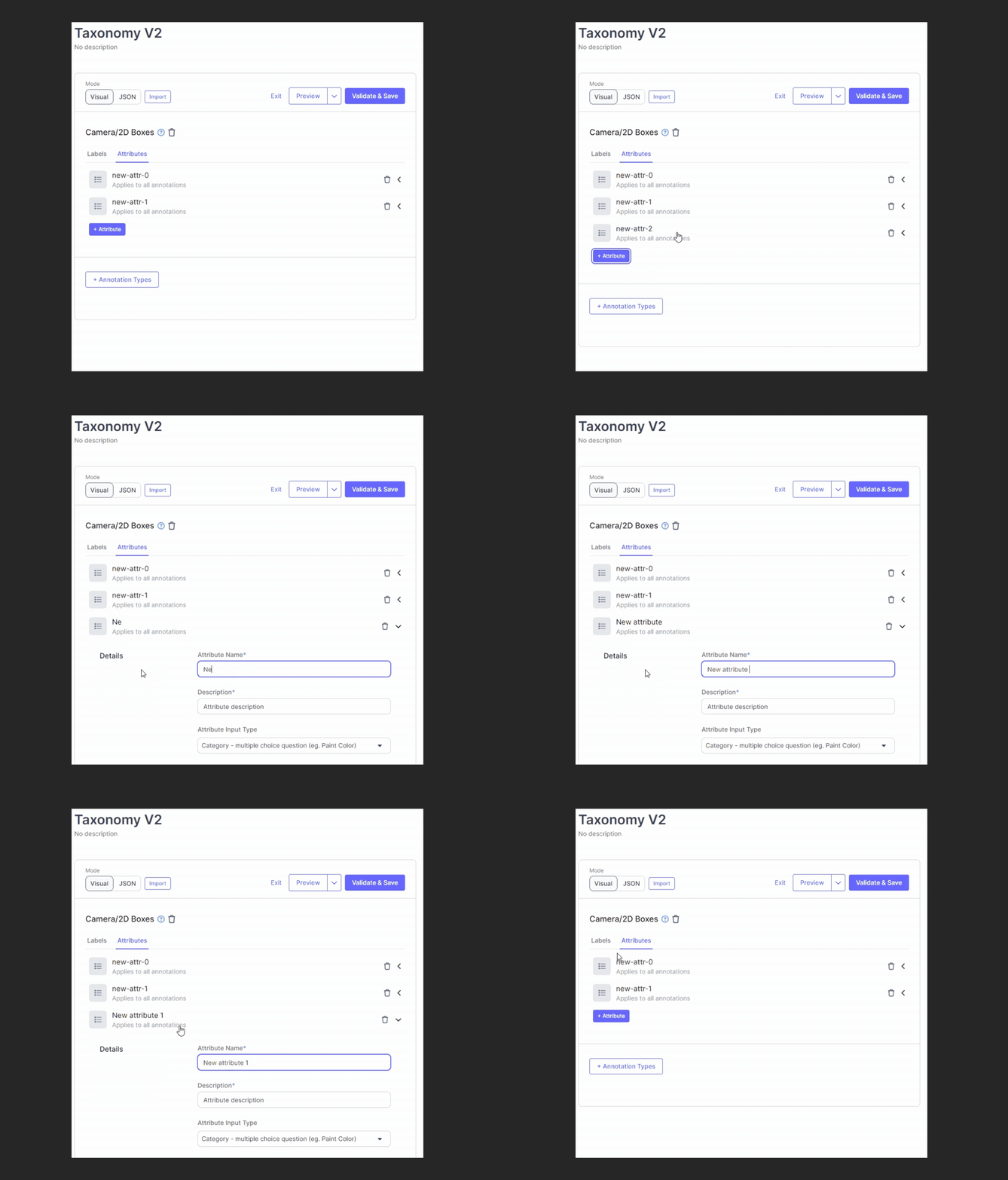
- Next, configure how the new attribute works. The most common settings are:
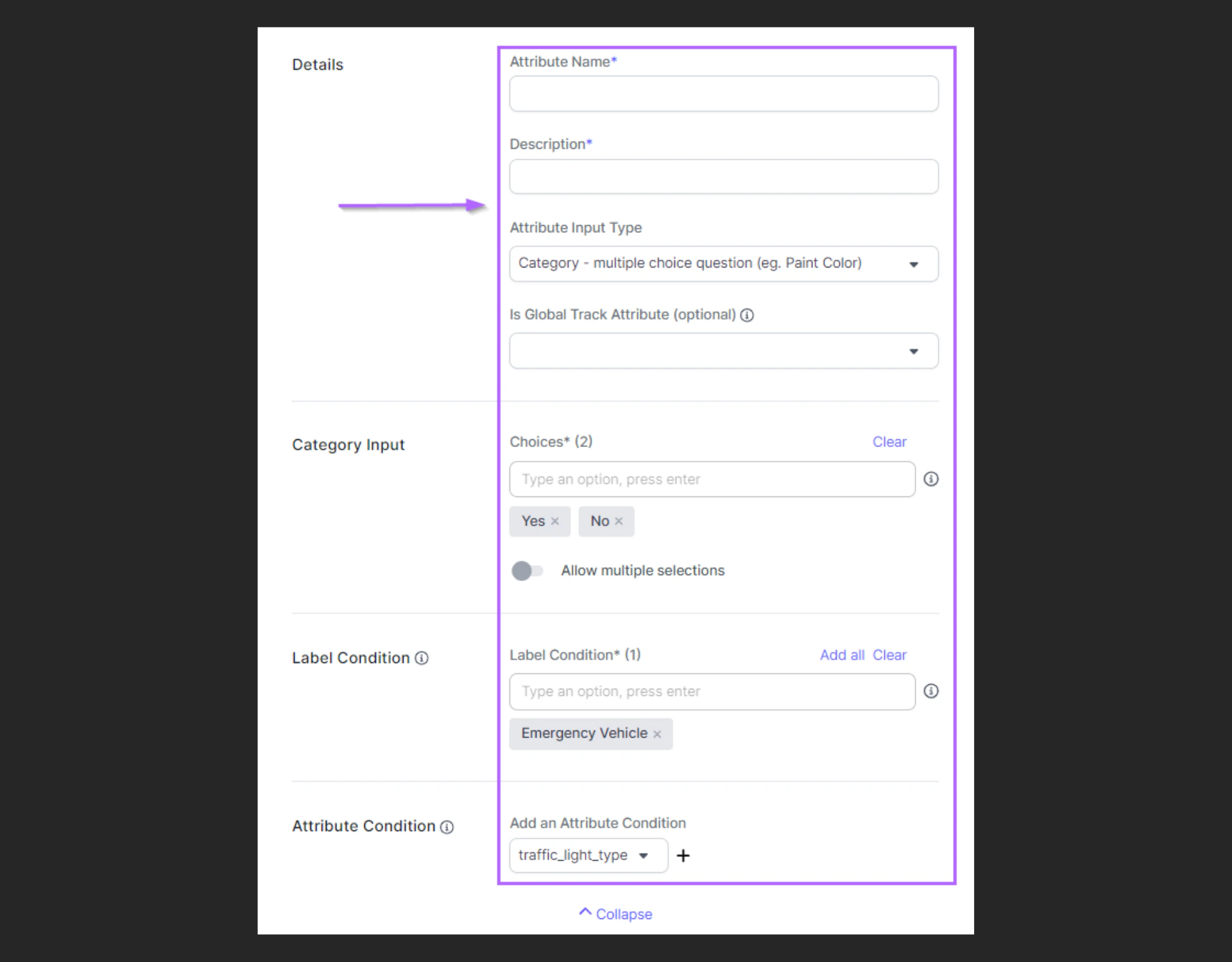
- Details: General Attribute information
- Attribute Name: The name of the attribute shown to labelers.
- Description: Description for attribute available for labelers.
- Attribute Input type: Sets how attribute values are entered. Available types vary by task type:
- Category: Multiple choice input
- Angle: Heading in degrees. ( eg. Sign direction )
- Number: Any numerical input
- Text: Open text input
- Linked: Link to another annotation present.
- Label Condition: The label this attribute applies to. If left empty, it applies to all labels.
- Attribute condition: Used when this attribute depends on another attribute’s value. Specify the other attribute and the value it must have.
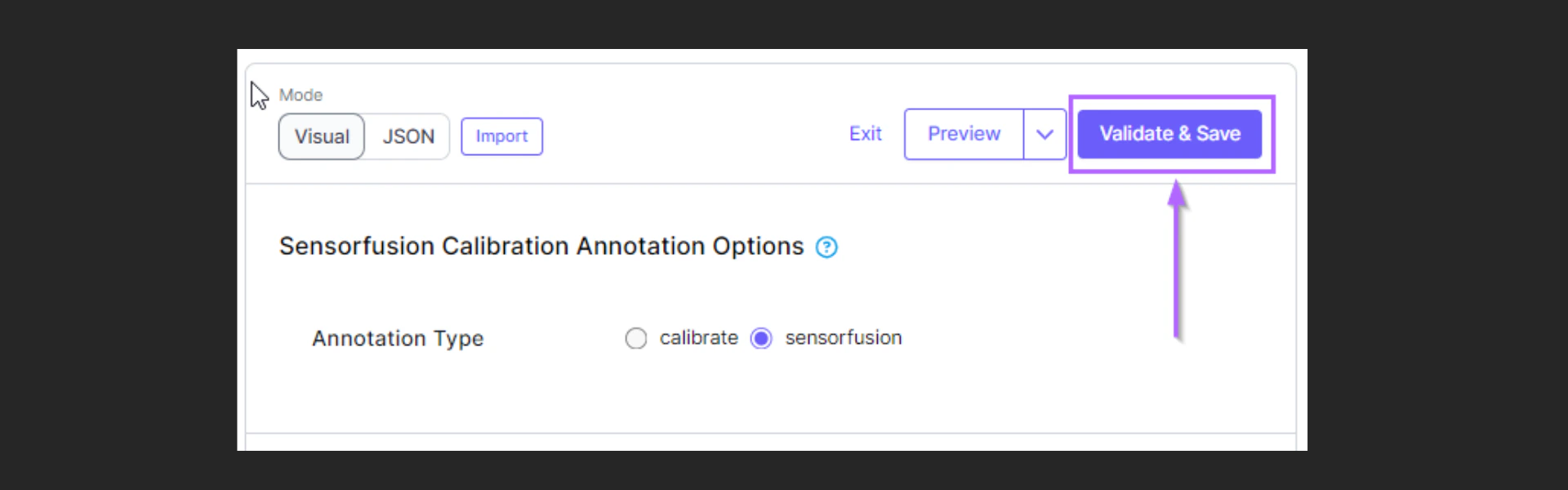
Publishing
Create a draft taxonomy, review and make necessary changes, and publish it when ready. Published taxonomies are automatically used for new tasks. Each time you publish a new version of the taxonomy, a new draft will be created where you can work on new changes, and the published version will be locked.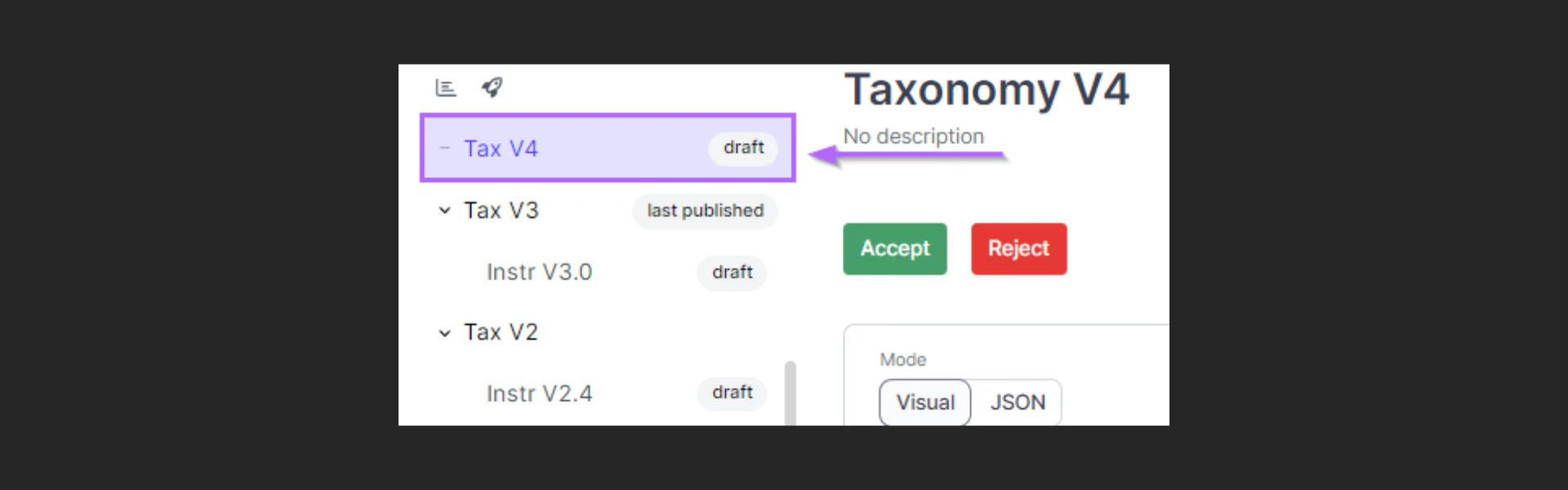
Proposal and Reviews
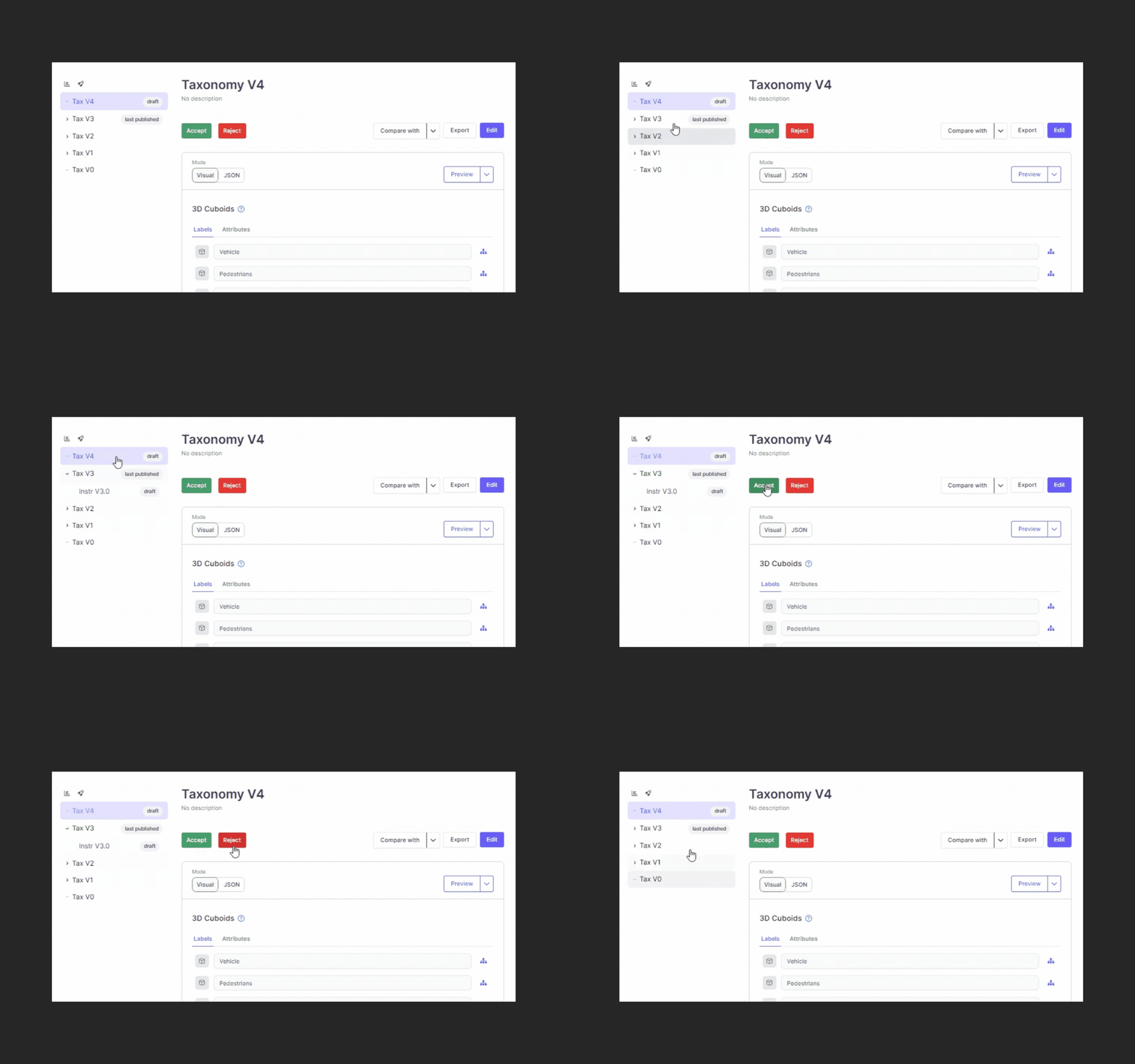
You can review taxonomies and submit proposals for changes. The Scale team will review these proposals and implement approved changes, ensuring that taxonomies remain up-to-date and accurate.- When you submit a taxonomy, Scale will be able to analyze the changes and review, accept, or reject this proposal.
- When Scale submits a taxonomy, you will be able to review, accept, or reject changes.