Videoplayback Audit Interface
This guide describes how to use the audit interface forvideoplaybackannotation tasks. Opening a videoplaybackannotation task from the Customer Dashboard brings up the following audit interface. The video is on the left side of the viewport, the toolbar is on the bottom, and the annotation and event lists are on the right. You can either approve or reject the task without making any edits (along with adding comments), or you may choose to fix the task by clicking the “Make Changes” button. Any edits you make to the task will update the response and trigger a callback to your specified callback URL with the updated response, ensuring that you receive the most accurate annotations.
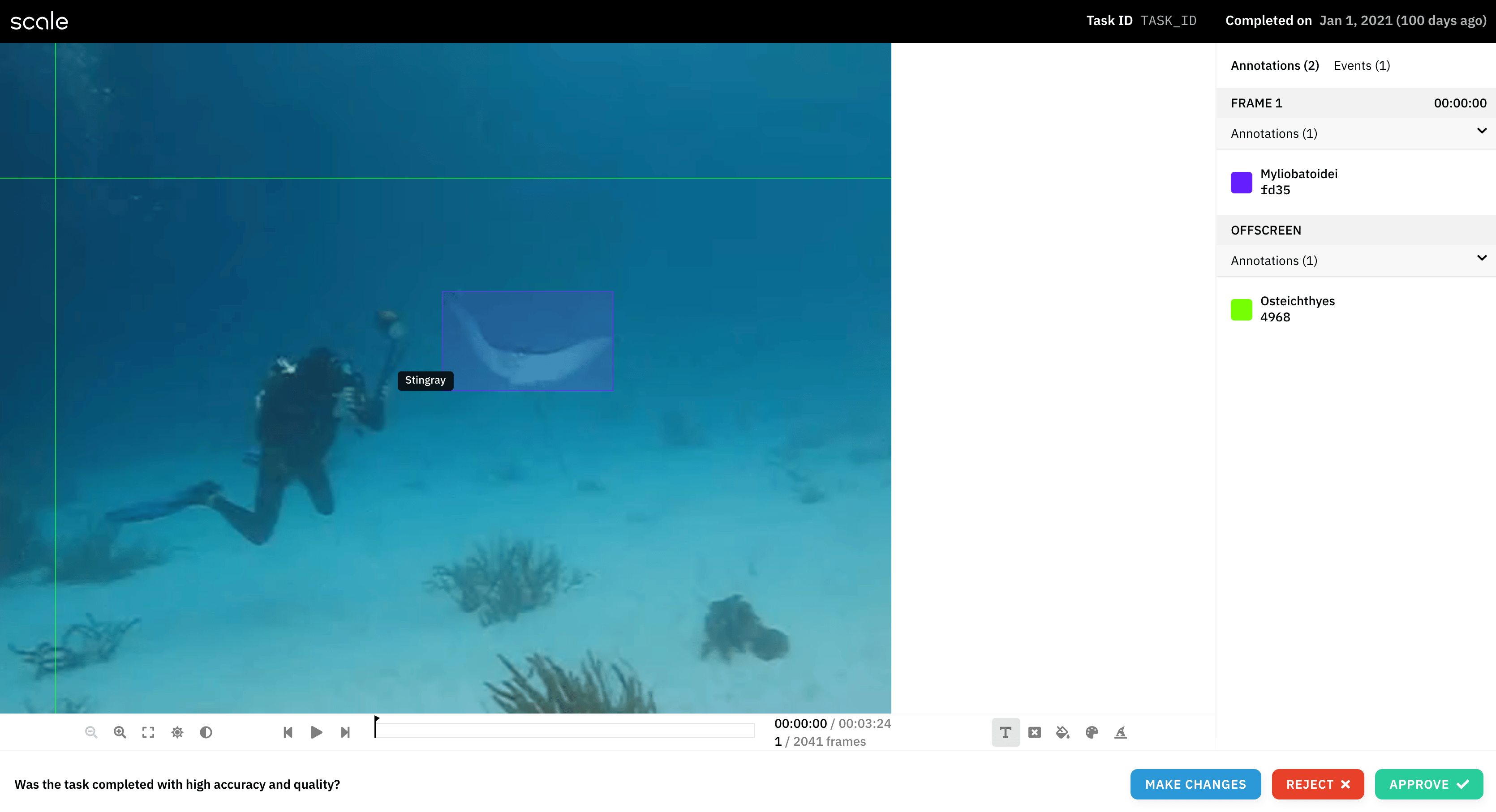

- Shape picker: allows you to change the shape that you are annotating with
- Show/hide labels
- Show/hide annotation fill
- Change the opacity of the annotation fill
- Change the coloring of the annotations/framebar (allowing you to make each annotation a distinct color, make each class a distinct color, etc.)
- Show/hide all predictions: display interpolations of annotations, in frames which they don’t currently appear

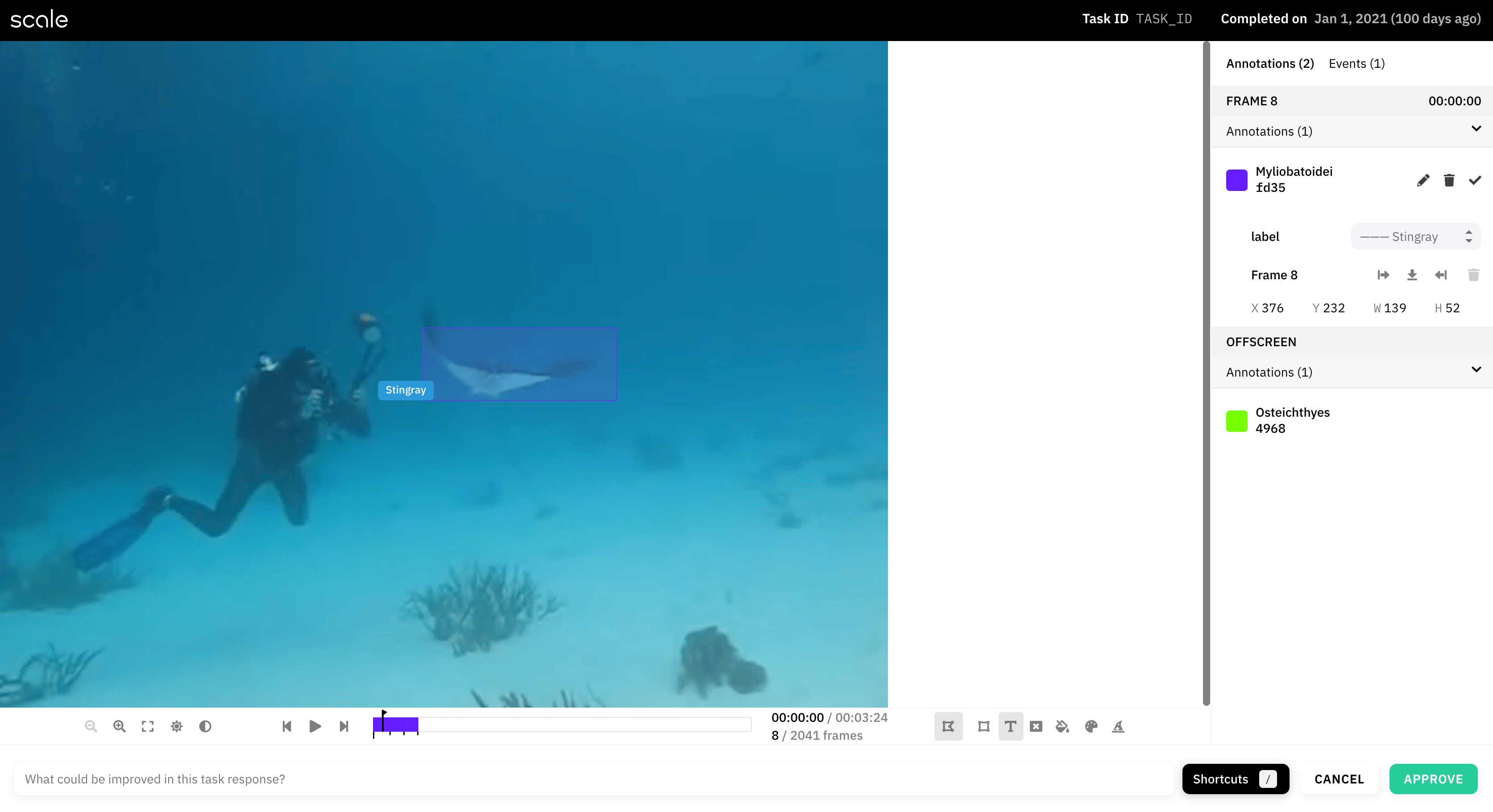
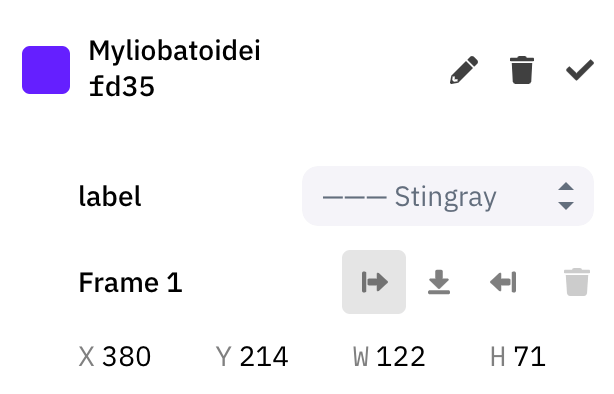
Efficient interpolation
If efficient interpolation is enabled for your project, you’ll be able to see the keyframes for each annotation in both the scrubber and the annotation list. With efficient interpolation enabled, interpolations are generated automatically in between keyframes, without the need to manually add interpolations to every frame.