> ## Documentation Index
> Fetch the complete documentation index at: https://api-reference.scale.com/llms.txt
> Use this file to discover all available pages before exploring further.
# Pro | Tasks Tab
> Tasks Tab Overview The Tasks tab allows you to view a more granular list of your submitted tasks, filterable by status, project, and batch. Task Filters You can search through your tasks using the following filters: 1. C
# Tasks Tab
## **Overview**
The **Tasks** tab allows you to view a more granular list of your submitted tasks, filterable by status, project, and batch.
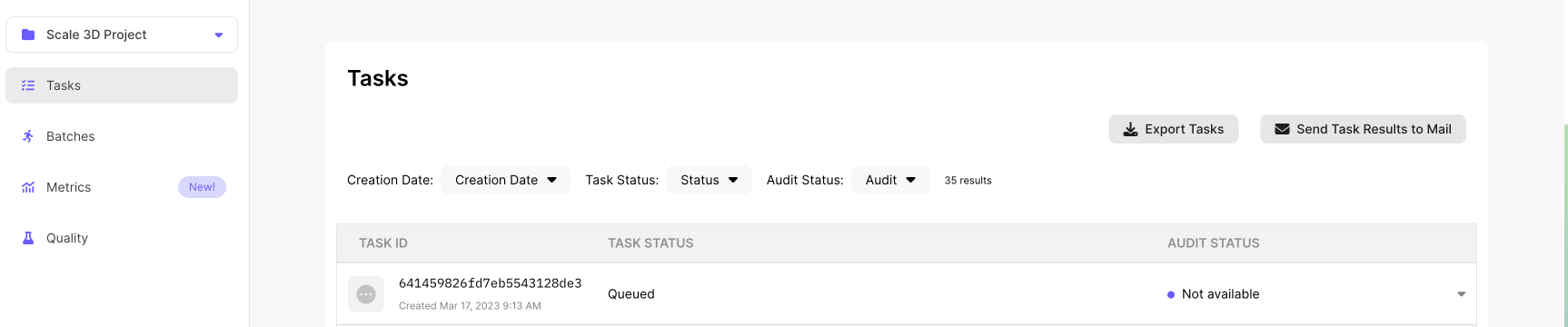 It is possible your task filters will hide all tasks. Please check your task filters carefully!
## **Task Filters**
You can search through your tasks using the following filters:
It is possible your task filters will hide all tasks. Please check your task filters carefully!
## **Task Filters**
You can search through your tasks using the following filters:
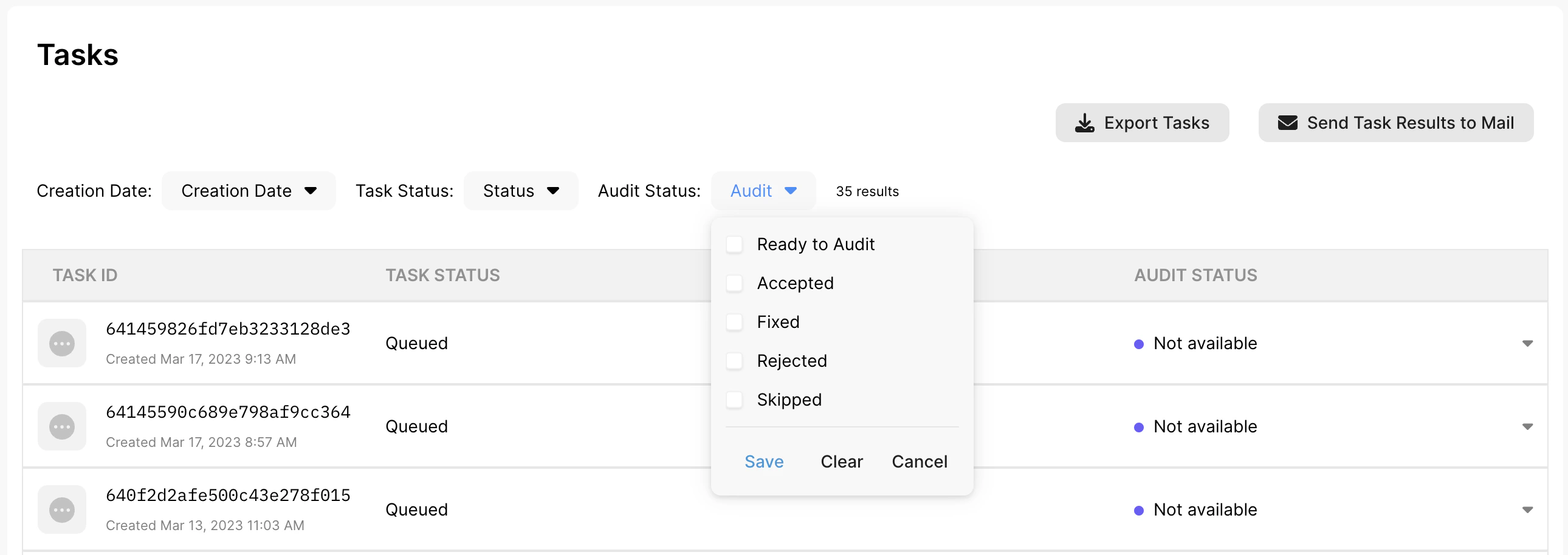 **1. Creation Date range** : Select the task completion or creation date range
* Note: You are able to select **UTC Time**, **Pacific Time,** or **Local Time**
**2. Task Status**
* You can also filter based on the task status. Here are the following status options:
* \*\*Completed - \*\*Tasks that have been completed by our taskers
* \*\*In Progress - \*\*Tasks that are being worked on by our taskers
* \*\*Queued - \*\*Tasks that have not been worked on yet
* \*\*Error - \*\*Tasks that have errors.
* \*\*Canceled - \*\*Tasks that have been cancelled by our customers
* \*\*Redo - \*\*Tasks that have been re-done by Scale
**3. Audit Status**
* Filter based on the customer audit status:
* \*\*Read to Audit \*\*(Tasks that have not been audited yet)
* **Accepted**
* **Fixed**
* **Rejected**
In Progress vs. Queued
You can only cancel tasks that are **Queued**.
Once the status of a task has moved into **In Progress** that means the task is already being worked on and can no longer be canceled.
For further information please reach out to **[support@scale.com](mailto:support@scale.com)**
## **Exporting JSON**
There are two ways for exporting JSON
**1. Creation Date range** : Select the task completion or creation date range
* Note: You are able to select **UTC Time**, **Pacific Time,** or **Local Time**
**2. Task Status**
* You can also filter based on the task status. Here are the following status options:
* \*\*Completed - \*\*Tasks that have been completed by our taskers
* \*\*In Progress - \*\*Tasks that are being worked on by our taskers
* \*\*Queued - \*\*Tasks that have not been worked on yet
* \*\*Error - \*\*Tasks that have errors.
* \*\*Canceled - \*\*Tasks that have been cancelled by our customers
* \*\*Redo - \*\*Tasks that have been re-done by Scale
**3. Audit Status**
* Filter based on the customer audit status:
* \*\*Read to Audit \*\*(Tasks that have not been audited yet)
* **Accepted**
* **Fixed**
* **Rejected**
In Progress vs. Queued
You can only cancel tasks that are **Queued**.
Once the status of a task has moved into **In Progress** that means the task is already being worked on and can no longer be canceled.
For further information please reach out to **[support@scale.com](mailto:support@scale.com)**
## **Exporting JSON**
There are two ways for exporting JSON
**1. Export JSON for all Tasks**
 * Click on the **Export** button at the top of the **Tasks** page
Please note that there is a 1,000 task limit. If you want to download more, please use our API instead.
**2. Export JSON for each Task Individually**
* Click on the **Export** button at the top of the **Tasks** page
Please note that there is a 1,000 task limit. If you want to download more, please use our API instead.
**2. Export JSON for each Task Individually**
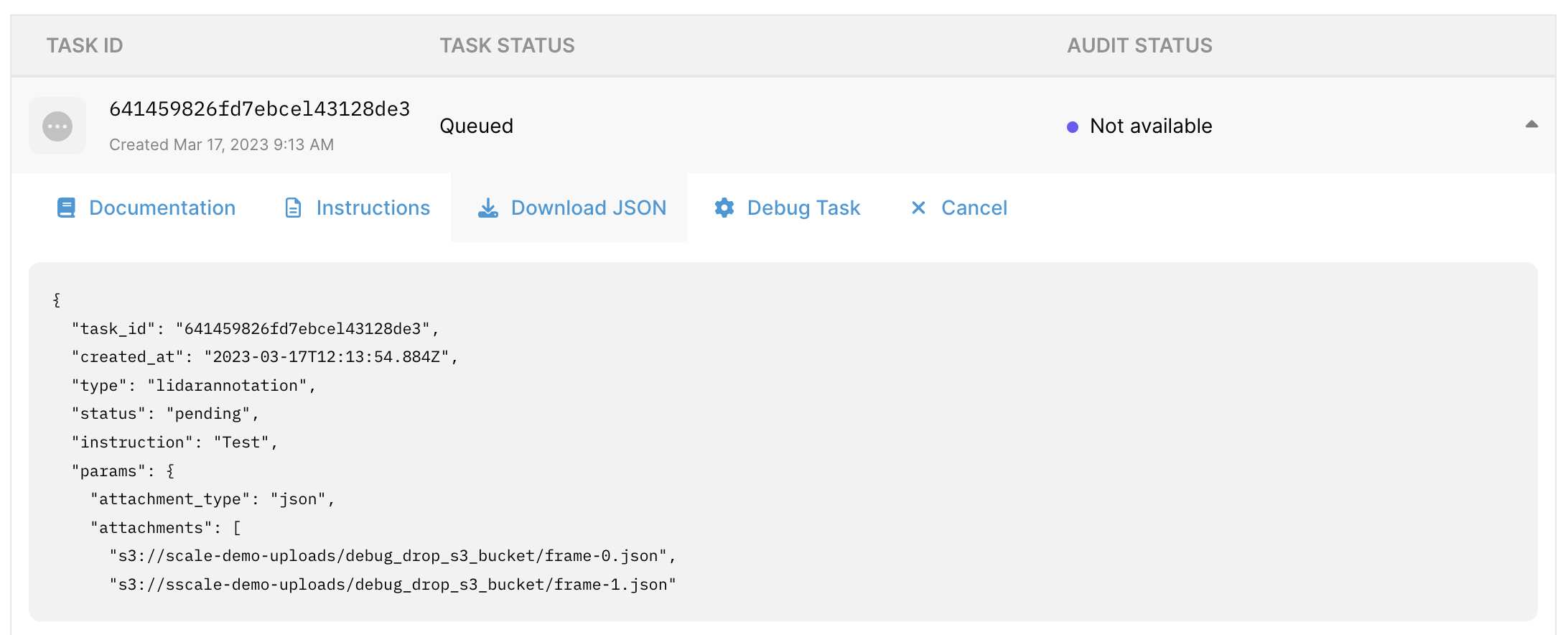 * Click on each task and then click on the **Download JSON** button. You can also see a preview of the JSON directly from this view.
## **Task Details**
**1. Task Preview**
* To preview the media asset file, please click into task and hover over the image tile. Please note that you can only preview the original image for pending tasks and annotated images for completed tasks.
* For 3D tasks, you can preview the point cloud file by clicking on “Debug Task” or “Audit Task” (this is for completed tasks only)
**2. Documentation & Instructions**
* To view the documentation and instructions for the task, please click into the task and navigate to the “Instructions” or “documentation“ button
**3. JSON**
* To view the JSON file for each task individually, please click into the task and navigate to the “Download JSON" button. Please note that this will only return the JSON file for the original task upload
* You can also export all JSON for all tasks using the "Export JSON" button
**Note**: this will only export 1000 tasks. If you want to export more, you must use the **[task API endpoint](https://docs.scale.com/reference#list-multiple-tasks)**.
## **Audit Tasks**
To audit tasks, click on an individual task, and then click the "Audit tasks" button. In this view you can:
* **Accept** - This will signal that we have completed the task to your quality standards
* **Fix** - If you want to make an immediately update to your callback response, you can fix tasks directly
* previous responses will be saved in the `prior_reponse` field of the callback body and the `response` field will be updated with the updated response.
* **Reject** - This will signal that we have not met your quality standards.
To learn more about this workflow, please see our best practices **[here](/docs/pro-or-quality)**.
## **Cancel Tasks**
You can only cancel tasks via the API - you can learn more about this endpoint **[here](https://docs.scale.com/reference#cancel-task)**.
You can only cancel tasks that are **Queued**.
Please do not cancel tasks that are **In Progress.** These tasks are already being worked on. Cancelling these tasks may result in a charge to compensate for the existing work.
Note: **Completed** tasks cannot be cancelled.
* Click on each task and then click on the **Download JSON** button. You can also see a preview of the JSON directly from this view.
## **Task Details**
**1. Task Preview**
* To preview the media asset file, please click into task and hover over the image tile. Please note that you can only preview the original image for pending tasks and annotated images for completed tasks.
* For 3D tasks, you can preview the point cloud file by clicking on “Debug Task” or “Audit Task” (this is for completed tasks only)
**2. Documentation & Instructions**
* To view the documentation and instructions for the task, please click into the task and navigate to the “Instructions” or “documentation“ button
**3. JSON**
* To view the JSON file for each task individually, please click into the task and navigate to the “Download JSON" button. Please note that this will only return the JSON file for the original task upload
* You can also export all JSON for all tasks using the "Export JSON" button
**Note**: this will only export 1000 tasks. If you want to export more, you must use the **[task API endpoint](https://docs.scale.com/reference#list-multiple-tasks)**.
## **Audit Tasks**
To audit tasks, click on an individual task, and then click the "Audit tasks" button. In this view you can:
* **Accept** - This will signal that we have completed the task to your quality standards
* **Fix** - If you want to make an immediately update to your callback response, you can fix tasks directly
* previous responses will be saved in the `prior_reponse` field of the callback body and the `response` field will be updated with the updated response.
* **Reject** - This will signal that we have not met your quality standards.
To learn more about this workflow, please see our best practices **[here](/docs/pro-or-quality)**.
## **Cancel Tasks**
You can only cancel tasks via the API - you can learn more about this endpoint **[here](https://docs.scale.com/reference#cancel-task)**.
You can only cancel tasks that are **Queued**.
Please do not cancel tasks that are **In Progress.** These tasks are already being worked on. Cancelling these tasks may result in a charge to compensate for the existing work.
Note: **Completed** tasks cannot be cancelled.