> ## Documentation Index
> Fetch the complete documentation index at: https://api-reference.scale.com/llms.txt
> Use this file to discover all available pages before exploring further.
# Pro | Quality
> Quality Tab Overview The Quality tab allows you to audit a random sample of tasks for quality and view stats for tasks you’ve audited Auditing Workflow There are three ways to audit tasks: 1. Audit completed tasks indivi
# Quality Tab
## **Overview**
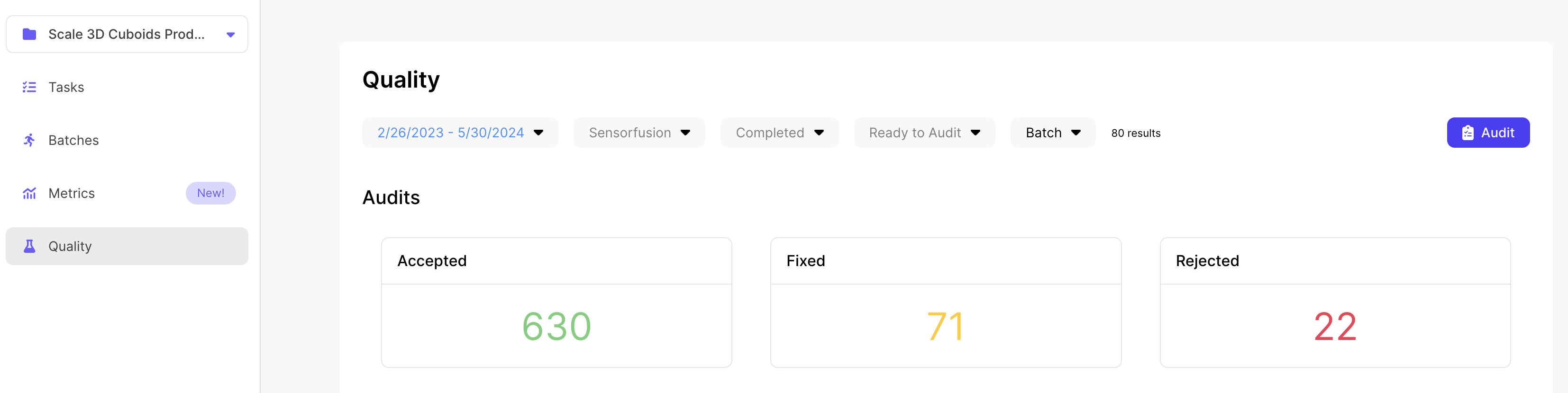
The **Quality** tab allows you to audit a random sample of tasks for quality and view stats for tasks you’ve audited
 Why should you audit tasks?
Auditing tasks allow you to provide feedback directly to our taskers. This will help us identify common errors or clarify edge cases
## **Auditing Workflow**
There are three ways to audit tasks:
1. Audit completed tasks individually
2. Audit all completed tasks within a date range
3. Audit all tasks completed across a specific week
**How to audit completed tasks individually:**
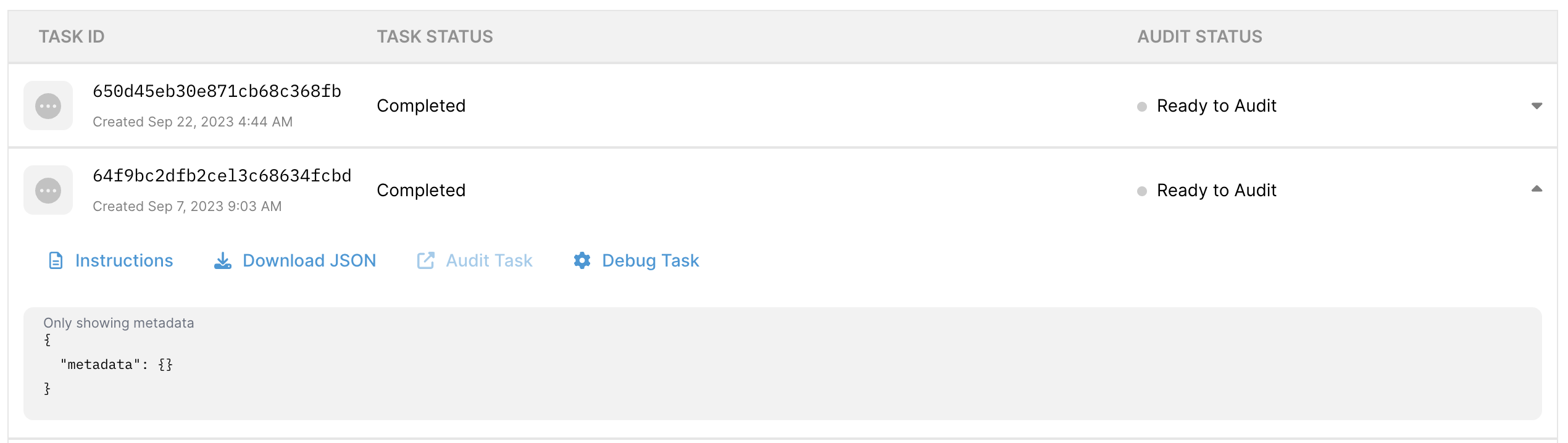
1. In the **Tasks** tab, filter on the **Completed** tasks
2. Search for the task that you want to audit and click on "**Audit Task**"
Why should you audit tasks?
Auditing tasks allow you to provide feedback directly to our taskers. This will help us identify common errors or clarify edge cases
## **Auditing Workflow**
There are three ways to audit tasks:
1. Audit completed tasks individually
2. Audit all completed tasks within a date range
3. Audit all tasks completed across a specific week
**How to audit completed tasks individually:**
1. In the **Tasks** tab, filter on the **Completed** tasks
2. Search for the task that you want to audit and click on "**Audit Task**"
 **How to audit all completed tasks within a date range:**
1. In the **Quality** tab, select the specified task date range, audit or batch status
2. Click on the "**Audit Tasks**" button - this will allow you to audit a random sample of tasks
**How to audit all completed tasks within a date range:**
1. In the **Quality** tab, select the specified task date range, audit or batch status
2. Click on the "**Audit Tasks**" button - this will allow you to audit a random sample of tasks
 **Audit all tasks completed across a week:**
1. In the **Quality** tab go to the "Tasks completed last week" tab under "Report"
2. Select **Audit** for the desired week
**Audit all tasks completed across a week:**
1. In the **Quality** tab go to the "Tasks completed last week" tab under "Report"
2. Select **Audit** for the desired week
 Auditing Tasks
If you have multiple people on your team auditing at the same time, we will “lock” each task so that only one person can audit one task at a time. This was designed to prevent conflicted copies.
## **Audit Feedback**
Within the audit workflow, you are able to make the following selections:
* **Approve**: Mark that tasks that have been completed according to instructions
* **Make Changes**: Fix tasks that have minor or non-critical errors that you can use to update your callback response immediately
* **Reject**: Signal that tasks have completed incorrectly. Please provide detailed comments for how our team can fix these mistakes moving forward
Reject vs. Make Changes
* Both **Reject** and **Make** **Changes** will provide feedback to the Scale team about the quality of your tasks.
* For quick or minor changes, please **Make Changes** as you will get an updated callback response right away. In addition, not all rejected tasks will be resubmitted. Please contact your engagement manager if you want to discuss re-dos
* For critical and more structural misunderstanding of the instructions, please **Reject** the task and provide detailed feedback! This will help our taskers to improve.
## **Audit Reports**
* The quality assurance dashboard will display the total number of reviews, accepts, and rejects using the set of filtered tasks. In addition, we also provide the following reports:
* **Tasks completed last week** - lets you audit tasks that have been aggregated by completed date from Monday 00:00 to Sunday 23:59 PST for the last 4 weeks
* \*\*Task Level Report \*\*- provides you with a list of tasks with auditor and completion time
* **Auditor Tracker** - shows an audit report for tasks in batches
* Note: this is only available if you are use batches. To learn more about batches, please see this article
* **Auditor Quality** - displays a summary of reviews, accepts, and rejects per auditor
## **Callback Body**
* When an audit is submitted, several new field will be added to the callback body:
* `customer_review_status`: Reflects the result of the audit as “Accepted”, “Rejected” or “Fixed”
* `customer_review_comments`: Shows all comment left during the audit
* `prior_responses`: Response before the audit
* If a task is fixed through multiple audits:
* `response`: will be updated with the most recent audit
* `customer_review_status`: will reflect the most recent audit
* `customer_review_comments`: will append the comment to the array
* `prior_responses`: will append previous responses to the array
Auditing Tasks
If you have multiple people on your team auditing at the same time, we will “lock” each task so that only one person can audit one task at a time. This was designed to prevent conflicted copies.
## **Audit Feedback**
Within the audit workflow, you are able to make the following selections:
* **Approve**: Mark that tasks that have been completed according to instructions
* **Make Changes**: Fix tasks that have minor or non-critical errors that you can use to update your callback response immediately
* **Reject**: Signal that tasks have completed incorrectly. Please provide detailed comments for how our team can fix these mistakes moving forward
Reject vs. Make Changes
* Both **Reject** and **Make** **Changes** will provide feedback to the Scale team about the quality of your tasks.
* For quick or minor changes, please **Make Changes** as you will get an updated callback response right away. In addition, not all rejected tasks will be resubmitted. Please contact your engagement manager if you want to discuss re-dos
* For critical and more structural misunderstanding of the instructions, please **Reject** the task and provide detailed feedback! This will help our taskers to improve.
## **Audit Reports**
* The quality assurance dashboard will display the total number of reviews, accepts, and rejects using the set of filtered tasks. In addition, we also provide the following reports:
* **Tasks completed last week** - lets you audit tasks that have been aggregated by completed date from Monday 00:00 to Sunday 23:59 PST for the last 4 weeks
* \*\*Task Level Report \*\*- provides you with a list of tasks with auditor and completion time
* **Auditor Tracker** - shows an audit report for tasks in batches
* Note: this is only available if you are use batches. To learn more about batches, please see this article
* **Auditor Quality** - displays a summary of reviews, accepts, and rejects per auditor
## **Callback Body**
* When an audit is submitted, several new field will be added to the callback body:
* `customer_review_status`: Reflects the result of the audit as “Accepted”, “Rejected” or “Fixed”
* `customer_review_comments`: Shows all comment left during the audit
* `prior_responses`: Response before the audit
* If a task is fixed through multiple audits:
* `response`: will be updated with the most recent audit
* `customer_review_status`: will reflect the most recent audit
* `customer_review_comments`: will append the comment to the array
* `prior_responses`: will append previous responses to the array