> ## Documentation Index
> Fetch the complete documentation index at: https://api-reference.scale.com/llms.txt
> Use this file to discover all available pages before exploring further.
# Pro | Manage Account
> Manage your Account Overview Customers can add new users, change user roles, and manage their team defaults by clicking the Your Team link found on the top right corner of the dashboard. Adding New Users To have someone
# Manage your Account
## **Overview**
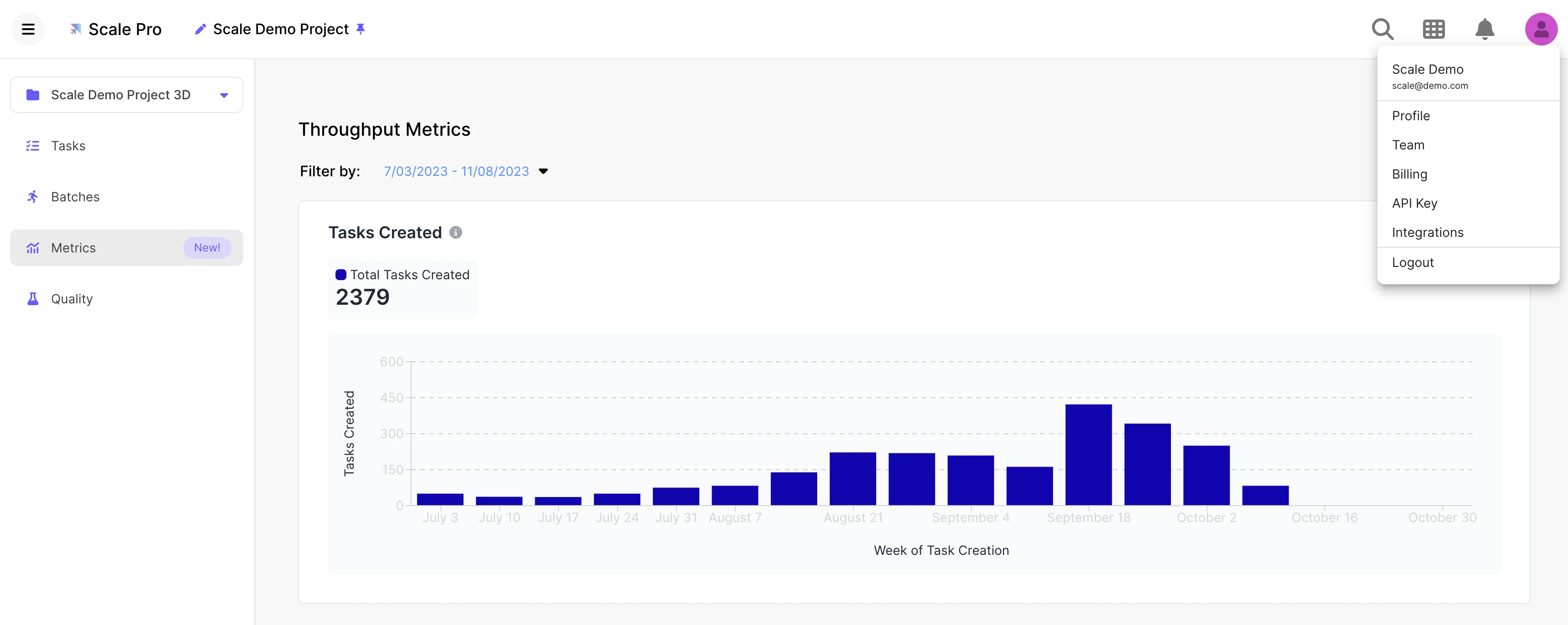
Customers can add new users, change user roles, and manage their team defaults by clicking the **Your Team** link found on the top right corner of the dashboard.
 ## **Adding New Users**
To have someone join your team, scroll down to the **Invite Member** button at the bottom of the page. Clicking this button will allow you to specify the email address of the user would like to invite.
Once this happens, Scale will send that user an invitation to join your team. You will see this person listed as **Invited** once you refresh the page:
## **Adding New Users**
To have someone join your team, scroll down to the **Invite Member** button at the bottom of the page. Clicking this button will allow you to specify the email address of the user would like to invite.
Once this happens, Scale will send that user an invitation to join your team. You will see this person listed as **Invited** once you refresh the page:
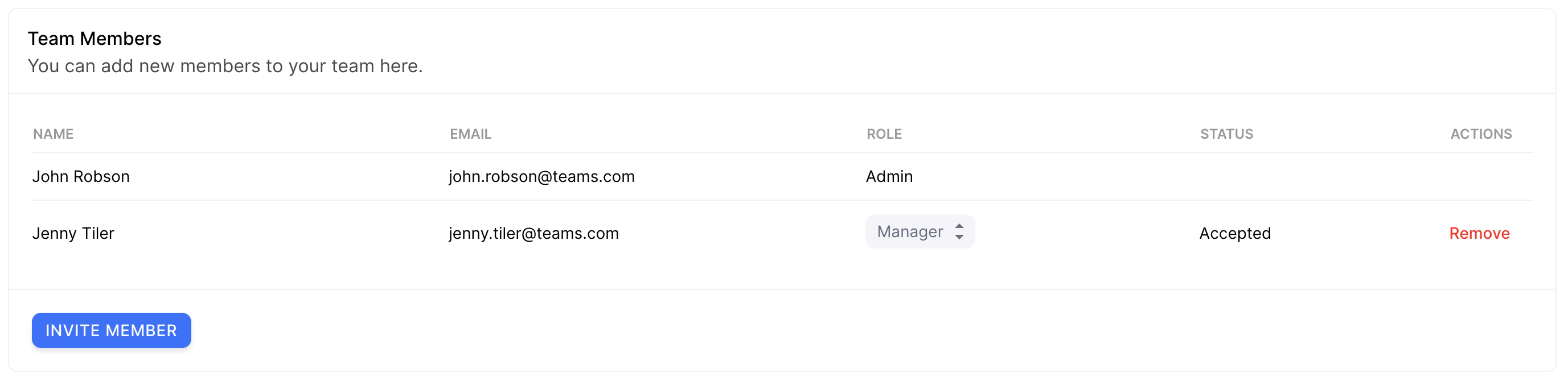 To re-send an invitation to join your team, you may click **Remove**, and then re-invite them with the **Invite Member** button.
When a new user accepts an invitation to join your team, they will be asked for their name, company, and other details for their profile.
Good to Know!
Users **must** accept your invite to join your team. There is not a way to have a user join a different team once signed up.
If the user has already made a new account as opposed to clicking your invite, please email **[support@scale.com](mailto:support@scale.com)** and we will be able to move the user to your team on your behalf.
**Users can not be added to more than one team.** If a user needs access to multiple Scale organizations, a best practice is to add a `**+**` with the second team name to their email address.
As an example, you could have `**[joe.schmoe@scale.com](mailto:joe.schmoe@scale.com)**` be in the Scale account and `**[joe.schmoe+second@scale.com](mailto:joe.schmoe+second@scale.com)**` be in the second account. Most email providers ignore anything after the + so you could still receive emails as expected.
## **User Roles**
Users can be in 1 of 3 roles. These roles are:
**Member** - Members can see and audit all tasks submitted, and create and edit projects.
**Manager** - In addition to all things a Member can do, Managers can manage team members, retrieve API keys to submit new tasks, and view billing information.
**Admin** - A team can only have 1 admin. Admins manage every aspect of a Scale account. On the back-end, all projects, team members, and API keys roll up to this admin user. If you need to change the admin user for any reason, please reach out to **[support@scale.com](mailto:support@scale.com)** and we will be happy to assist.
## **Team Details**
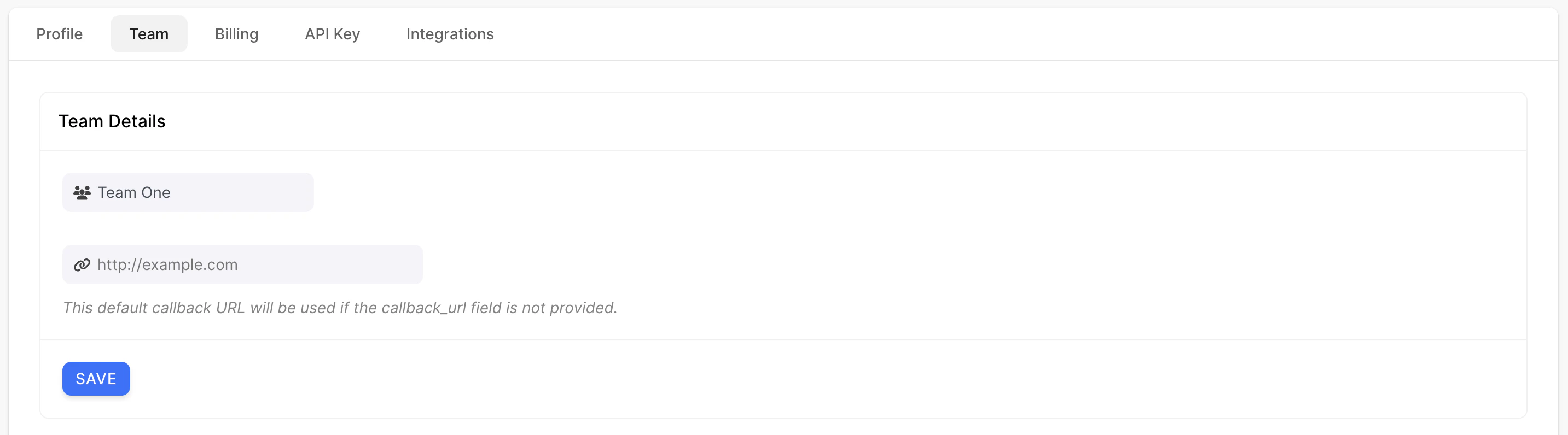
In addition to managing your team, you can also change your **team name** and **callback URL** under the team details header.
* Your **team name** will be used as the prefix as your project names
* Your **callback URL** is the default callback URL if the callback\_url field is not provided. This is the URL where we will POST the results of your annotations
To re-send an invitation to join your team, you may click **Remove**, and then re-invite them with the **Invite Member** button.
When a new user accepts an invitation to join your team, they will be asked for their name, company, and other details for their profile.
Good to Know!
Users **must** accept your invite to join your team. There is not a way to have a user join a different team once signed up.
If the user has already made a new account as opposed to clicking your invite, please email **[support@scale.com](mailto:support@scale.com)** and we will be able to move the user to your team on your behalf.
**Users can not be added to more than one team.** If a user needs access to multiple Scale organizations, a best practice is to add a `**+**` with the second team name to their email address.
As an example, you could have `**[joe.schmoe@scale.com](mailto:joe.schmoe@scale.com)**` be in the Scale account and `**[joe.schmoe+second@scale.com](mailto:joe.schmoe+second@scale.com)**` be in the second account. Most email providers ignore anything after the + so you could still receive emails as expected.
## **User Roles**
Users can be in 1 of 3 roles. These roles are:
**Member** - Members can see and audit all tasks submitted, and create and edit projects.
**Manager** - In addition to all things a Member can do, Managers can manage team members, retrieve API keys to submit new tasks, and view billing information.
**Admin** - A team can only have 1 admin. Admins manage every aspect of a Scale account. On the back-end, all projects, team members, and API keys roll up to this admin user. If you need to change the admin user for any reason, please reach out to **[support@scale.com](mailto:support@scale.com)** and we will be happy to assist.
## **Team Details**
In addition to managing your team, you can also change your **team name** and **callback URL** under the team details header.
* Your **team name** will be used as the prefix as your project names
* Your **callback URL** is the default callback URL if the callback\_url field is not provided. This is the URL where we will POST the results of your annotations
 ## **API Keys**
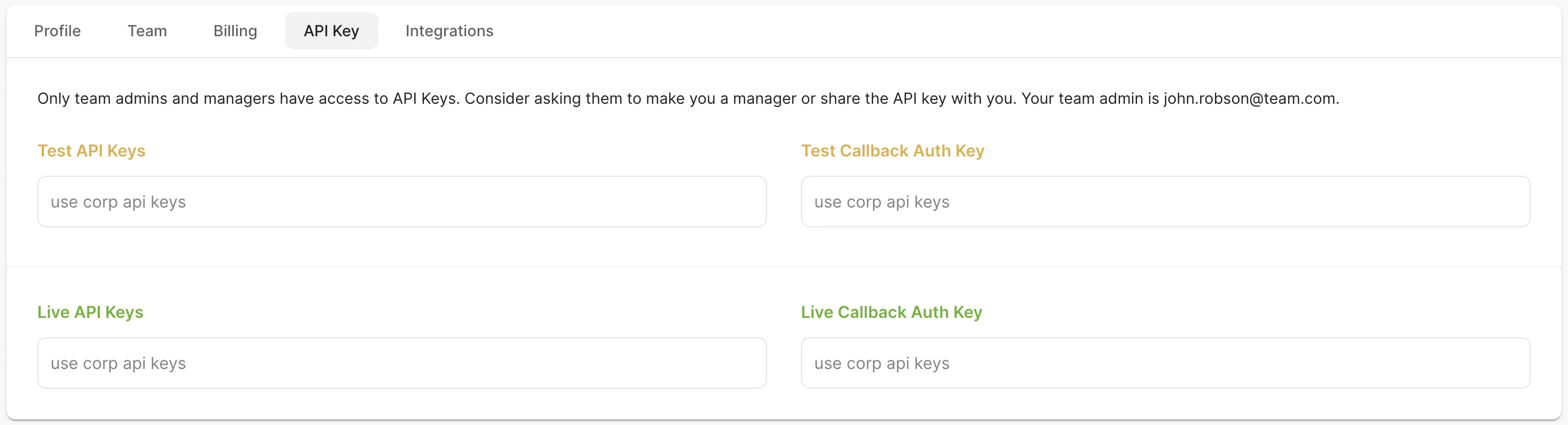
To retrieve your API keys, please navigate to \*\*API Keys \*\*link found by clicking on the user profile icon in the top right of the page.
Within this page, you can also **Add a new key** or **Delete your existing one.**
Scale offers live and test API keys.
* The \*\*live key \*\*is used to send tasks to our labeling team for completion.
* The **test key** will not be sent to our labeling team. The purpose of this functionality is to test out our API on our website
If you’d like to authenticate our callbacks, we set a scale-callback-auth HTTP header on each of our callbacks. The value will be equal to your **Live Callback Auth Key** shown on your dashboard. If this header is not set, or it is set incorrectly, the callback is not from Scale.
## **API Keys**
To retrieve your API keys, please navigate to \*\*API Keys \*\*link found by clicking on the user profile icon in the top right of the page.
Within this page, you can also **Add a new key** or **Delete your existing one.**
Scale offers live and test API keys.
* The \*\*live key \*\*is used to send tasks to our labeling team for completion.
* The **test key** will not be sent to our labeling team. The purpose of this functionality is to test out our API on our website
If you’d like to authenticate our callbacks, we set a scale-callback-auth HTTP header on each of our callbacks. The value will be equal to your **Live Callback Auth Key** shown on your dashboard. If this header is not set, or it is set incorrectly, the callback is not from Scale.
 ## **Billing**
For our enterprise customers, your account is billed via an invoice. Please contact your Scale account representative for more details on billing.
For our on-demand customers, we display the number of completed tasks, accrued balance, and last invoices in our billing tab. Your payment information can be updated in the **teams** button by clicking on the user profile on the top right of your page.
## **Integrations**
Within the customer dashboard, you are able to set up cloud storage integrations with AWS, Google Cloud Platform, and Azure.
For detailed instructions, please see the **[secure attachment access guide](/docs/upload-your-data)**.
## **Billing**
For our enterprise customers, your account is billed via an invoice. Please contact your Scale account representative for more details on billing.
For our on-demand customers, we display the number of completed tasks, accrued balance, and last invoices in our billing tab. Your payment information can be updated in the **teams** button by clicking on the user profile on the top right of your page.
## **Integrations**
Within the customer dashboard, you are able to set up cloud storage integrations with AWS, Google Cloud Platform, and Azure.
For detailed instructions, please see the **[secure attachment access guide](/docs/upload-your-data)**.