> ## Documentation Index
> Fetch the complete documentation index at: https://api-reference.scale.com/llms.txt
> Use this file to discover all available pages before exploring further.
# Google Cloud Storage
> Google Cloud Storage Google Cloud Storage Access If you use Google Cloud Storage to store data, if you submit tasks with attachments as gs: protocol URIs, rather than http: or https:, we will use the Google Cloud Storage
# Google Cloud Storage
## **Google Cloud Storage Access**
If you use Google Cloud Storage to store data, if you submit tasks with attachments as `gs:`\*\* protocol URIs\*\*, rather than `http:` or `https:`, we will use the Google Cloud Storage API to fetch your data. For example, instead of sending `https://storage.googleapis.com/bucket/key`, you would send `gs://bucket/key`.
We can either fetch your data using **Service Account Impersonation** (preferred, more secure) or **Cross-project Access**.
### **Service Account Impersonation**
To access Cloud Storage data in your GCP project, Scale can **[impersonate a service account within that project](https://cloud.google.com/iam/docs/creating-short-lived-service-account-credentials)**, which has permission to access data in Cloud Storage.
To set up Service Account Impersonation:
1. As a team admin or manager, go to **[dashboard.scale.com/settings/integrations](https://dashboard.scale.com/settings/integrations)**.
2. In another window, navigate to the **[GCP Service Accounts](https://console.cloud.google.com/iam-admin/serviceaccounts)** page for the appropriate project.
3. Create a service account.
* The service account ID must contain an 8-character user identifier as a substring, this identifier can be found in the Google Cloud Platform section of the Integrations Settings page.
* We suggest the ID `scaleai-integrations-\{uid\}`.
1. Grant Scale's service account the ability to impersonate the newly created service account
* In the Service Accounts page on GCP, check the box associated with the newly created service account.
* In the permissions pane on the right, click `Add Principal`, you may need to click "Show Info Panel" in the top right to see this option.
* Specify `backend-bucket-access@attachment-storage-243718.iam.gserviceaccount.com` as the member, and `Service Account Token Creator` as the role.
* Save the permissions.
1. In Google Cloud Storage, assign the `Storage Object Viewer` permissions for the requisite buckets to the newly created service account.
* If you use fine-grained access controls, add the service account email as a Reader for any objects you would like to upload (if not already granted by bucket-level access).
1. Return to the Scale Dashboard and enter the email of the service account.
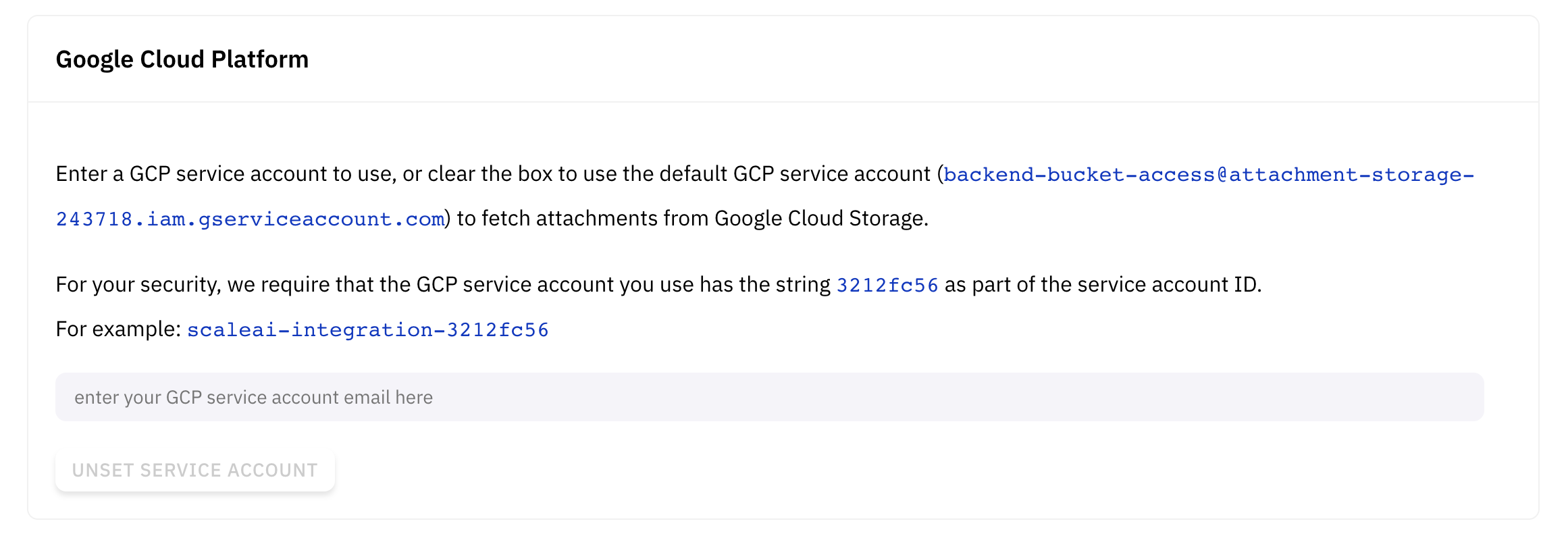 Note that if you enable the GCP integration for your account, we will not attempt to fetch attachments from the default service account ( `backend-bucket-access@attachment-storage-243718.iam.gserviceaccount.com`) directly; the policies described in **[GCP IAM Access](/docs/google-cloud-storage#gcp-iam-access)** will not work.
### **Cross-project Access**
If Service Account Impersonation is not configured, we will directly fetch attachments from your GCS bucket, using the GCP service account `backend-bucket-access@attachment-storage-243718.iam.gserviceaccount.com`. You can grant access to this service account on a **[per-object basis with ACLs](https://cloud.google.com/storage/docs/access-control/create-manage-lists)**, or on a **[per-bucket basis with Cloud IAM](https://cloud.google.com/storage/docs/access-control/using-iam-permissions)**
Note that if you enable the GCP integration for your account, we will not attempt to fetch attachments from the default service account ( `backend-bucket-access@attachment-storage-243718.iam.gserviceaccount.com`) directly; the policies described in **[GCP IAM Access](/docs/google-cloud-storage#gcp-iam-access)** will not work.
### **Cross-project Access**
If Service Account Impersonation is not configured, we will directly fetch attachments from your GCS bucket, using the GCP service account `backend-bucket-access@attachment-storage-243718.iam.gserviceaccount.com`. You can grant access to this service account on a **[per-object basis with ACLs](https://cloud.google.com/storage/docs/access-control/create-manage-lists)**, or on a **[per-bucket basis with Cloud IAM](https://cloud.google.com/storage/docs/access-control/using-iam-permissions)**
**[Permissions](https://cloud.google.com/storage/docs/access-control/using-iam-permissions)**.
Please note that this authentication mechanism suffers from the **[confused deputy problem](https://en.wikipedia.org/wiki/Confused_deputy_problem)** — a third party that can guess your Cloud Storage URLs will be able to submit tasks with your data.